


You can add custom fields to tickets and they can be visible to agents only or to both agents and end-users. You can include custom fields to your support request form by adding them as editable and visible.
After you create your custom ticket field, you can use it in triggers, automations, macros, and views. On Suite Professional and above, you can report on custom ticket fields in Explore.
You must be an administrator to create custom ticket fields.
Topics covered in this article:
- How custom ticket fields work
- Adding a custom ticket field for agents and end-users
- Understanding the persistence of custom field data
Related articles:
How custom ticket fields work
Custom ticket fields are typically used to gather more information about the support issue or product or service. You can add custom fields to your tickets for agents and you can also add them to your Help Center Submit a Request form if you want end-users to see the custom field. Custom ticket fields can be required or optional.

- Drop-down
- Multi-select
- Text
- Multi-line
- Numeric
- Decimal
- Checkbox
- Date
- Regex
The drop-down list, multi-select, and checkbox custom fields generate tags that can also be used in automations, macros, triggers, reports, and views (see Understanding custom ticket fields, tags, and business rules). All custom fields can be referenced as placeholders (see Placeholders for custom fields).
Adding a custom ticket field for agents and end-users
You can add custom fields to tickets, and decide if they should be visible to agents only or to both agents and end-users. You can permit end-users to view the custom field in their MorgWard Support ticket by making the field visible, or you can add the custom field to the Support Request form by making the field both visible and editable.
Before you begin, see Optimizing your ticket form to understand ticket fields and do some planning to build an optimal ticket form.
You must be an administrator to create custom ticket fields.
- In Admin Center, click the Objects and rules
icon (
 ) in the sidebar, then select Tickets > Fields.
 - Click the Add field button.
- Click in the New Field at the top of the page, and enter a title for the field.
- Select
the type of custom field you want to create.
Hover over the info icon (
 ) to view information about each
field type. Also, see About custom field
types.
) to view information about each
field type. Also, see About custom field
types.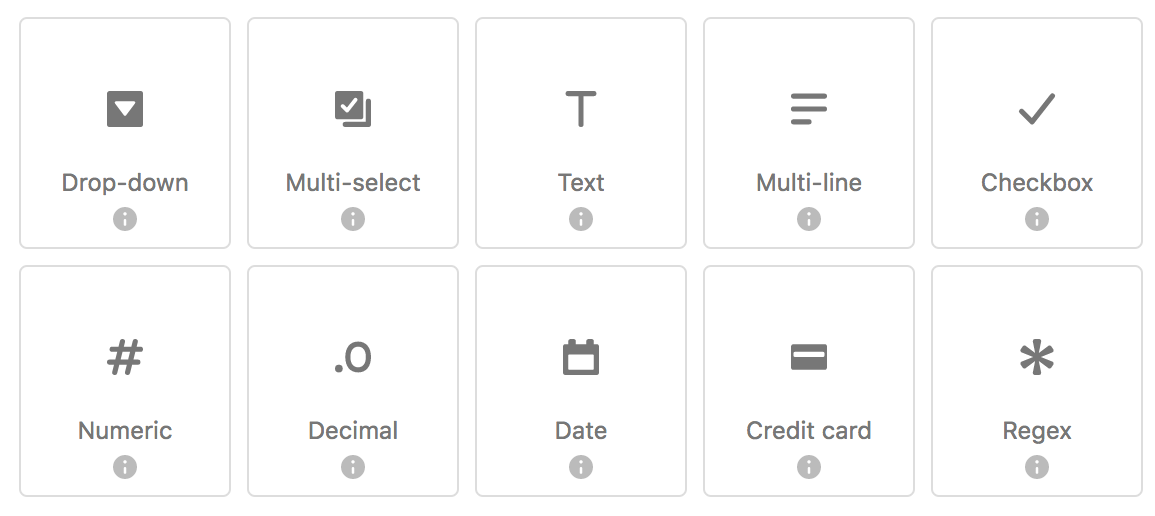
During custom field creation, you can change the selected field type at any time, but you cannot change the field type after the new field has been saved.
- In Description, enter an optional description for the field, visible only to administrators.
- Under
Permissions,
select an option:
- Agent only: Only signed-in agents can view or edit the field. The field will appear in tickets for agents only.
- Editable for end-users: Agents and end-users can view or edit the field. The field will appear in tickets and in the support request form in Help Center.
- Read-only for end-users: Signed-in agents can view or edit the field; end users can view the field through the help center customer portal. The field will appear in tickets.
If you have a single ticket form, the new field will automatically appear in your ticket form according to your settings here. If you have multiple ticket forms, you need to add the ticket field to any ticket forms where you want it to appear. You can do so in the last step of this procedure.
- Enter
a
Title shown to agent and a Title shown to
end-users.
The title for end-users is not editable if you configured the field for agents only in the previous step.
- Select
Required to solve a ticket if the field must be filled out by an agent before
solving the ticket.Note: When agents merge a ticket, they do not need to fill in required fields as merged tickets bypass Solved and go directly to Closed. This setting is also bypassed if a business rule changes the ticket to Solved, because a system process is solving the ticket rather than an agent.
- Select Required to submit a request if the field must be filled out by an end-user before submitting a ticket.
- Enter
an
optional
Description
shown
to
end-users
if your field is configured for
end-users.
This field is not editable if you configured the field for agents only above.
- Depending on the type of field you're creating, you may have the following settings to
configure:
-
Field values
(drop-down and multi-select fields only):
- Enter a Field option to include in the list, then click in the next value field to enter another option, and repeat as needed. You can bulk import field values if you have a large number to add. Click the X to remove a value.
- Click Show tags to view and edit the tags generated by each option.
- Click Order alphabetically to display the options in
alphabetical
order
or use the drag-and-drop handle (
 ) to manually
reorder.
) to manually
reorder. - Delete a field value by clicking the X to the right of the value.
- To choose
a
default
value
for a drop-down
field,
hover over
the
value,
then
click Make default.Note: The default value in a drop-down list only applies to new tickets that are created by agents through the Support interface or created by users wherever the ticket form is displayed. If you change an existing ticket form to one with a drop-down list with a default option, the default option is not displayed and is shown as blank.
- Field option (checkbox fields only, optional): Enter a tag to apply to a ticket when the ticket field checkbox is selected.
- Field validation (regex fields only): Enter a Ruby regular expression to create an input mask to validate entry.
-
Field values
(drop-down and multi-select fields only):
- Click
Preview
to
see
how your custom field will appear to both agents and
end-users.
You can enter or select options to see how the field functions. Click Close to return to the custom field screen.
- Click
Save
or, if you want to create another custom field, click the drop-down icon and select
Save and add another.

The ticket field automatically appears in your ticket form if you have a single ticket form. If you have multiple ticket forms (Enterprise plans only), you need to manually add the ticket field to your ticket forms in the next step.
- (Enterprise plans only) To add the new field to multiple ticket forms, edit the ticket form where you want the custom
field to appear, drag the new ticket field from the right onto the ticket form, then
click Save.
You can repeat this step as needed for multiple ticket forms.
The new custom ticket field will appear on new tickets. If the field does not appear on a new ticket, you might need to restart your browser to see it. If a ticket field that you previously configured as required is not displayed on the ticket form, it does not need to be entered.
The new custom field is also added to any tickets in a less-than-closed state, closed tickets, and archived tickets. The field will display a null '-' or empty value depending on the type of custom field.
After you create your custom ticket field, you can use it in triggers, automations, macros, and views (see Using custom ticket fields in business rules). However, text or numeric custom ticket fields can only be used in views.
On Suite Professional and above, you can report on custom ticket fields in Explore (see Reporting with custom fields).
Understanding the persistence of custom field data
If you delete a custom field, the data from the custom field is not preserved in existing tickets, including closed tickets. The data is preserved only if the custom field also adds a tag to a ticket. The three custom fields that add tags are the drop-down list, the checkbox, and multi-select fields. If you delete one of these custom fields, then the data in tickets persist as tags.
For example, suppose you have a drop-down list in your ticket form to associate tickets with different product names. After a while, a decision is made to stop providing support for one of the products. If you remove the product from the drop-down list, the product name persists in existing tickets as a tag. If however you use a text field to record a product ID and you delete the text field, the product ID is not preserved in your tickets.
Comments
0 comments
Please sign in to leave a comment.