


You can view an end user's profile either in MorgWard Support or Help Center.
For information on viewing your own user profile, see Viewing your MorgWard Support user profile. For information on viewing a user's profile in Help Center, see Viewing user profiles from Help Center.
- Open a user's profile using one of the following methods in
MorgWard Support:
- Click the Search icon (
 ) in the
sidebar, then search for the end
user
you want to edit.
) in the
sidebar, then search for the end
user
you want to edit. - Click the tab for the ticket requester's profile in a ticket.
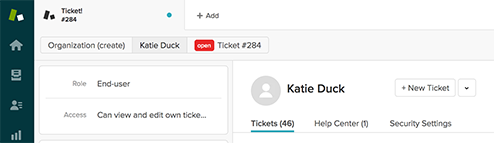
- Click the Search icon (
- Click through the different tabs on the main window to view the
following information:
- Tickets: View a user's requested or CC'd tickets. See Viewing your tickets activity in your profile.
- Help Center: View a user's comments, posts, votes, and subscriptions.
- Security Settings: Reset a user's password. See Resetting users passwords.
- Click the + New Ticket button next to the user's name at the top right of the profile to create a new ticket on their behalf or the down arrow to perform actions such as merging, suspending, deleting, or assuming the identity of the user.
- View and edit user details on the left side of your
profile.
Below are the default user fields. If you have created custom fields, they will be included in the user details panel, as well (see Adding custom fields to users).
Default user fields
| User data | Description |
|---|---|
| Role | Defines the user's function and access level. There are three user types: End user, Agent, and Administrator. By default, all new users are set to end users. Agents can only add end users. Only administrators can change a user's role. |
| Access |
Important: There are organization
access settings in the user profile and in the
organization itself. If the settings are in
conflict, the more permissive setting overrides
the less permissive setting.
|
| This is the email address you added for the end user. The email address must be unique to the end user. You cannot use a duplicate email address. | |
| Contacts | You can also add additional contact information for users using the Add contacts link. See Adding customer contact information. |
| Tags | List of tags you want automatically added to new tickets created by the end user. Separate tags with a space. Tags are added to new tickets only, not updated tickets. This is an optional feature and you might not have enabled user tagging. See Adding tags to users and organizations. |
| Organization | If you use organizations, and you want to
add this end
user
to one, click Add organization, then enter
the name of the organization. Click Add
organization again if you'd like to add this
user to multiple organizations (see Enabling multiple
organizations for users). On the Team plan, users can belong to only one organization. On Professional and Enterprise, users can belong to multiple organizations, up to 300. A user does not have to belong to any organization, however. If your administrator has set up user mapping, which automatically adds new users to an organization based on their email domain, you can leave this blank. |
| Language | Language the user will view your instance of MorgWard Support in. This setting affects this user only. The end-user's Help Center will appear in the selected language and some system messages and email notifications may also be in the selected language. |
| Time zone | The end-user's local time zone; used to time stamp tickets submitted by this user. This setting affects this user only. |
| Details | Additional details about the end user. Address, for example. Details are visible to agents only, not end users. |
| Notes | Any notes about the end user. Notes are visible to agents only, not end users. |
Comments
0 comments
Article is closed for comments.