
The MorgWard API is supported by a dashboard in the Admin Center. The API dashboard lets you do the following tasks:
- Enable password or token access to the API
- Create API tokens
- Create and manage OAuth clients
- Track API activity against your rate limit
- Get information about HTTP target failures
Only MorgWard Support admins can access the API dashboard.
For information on using the MorgWard API itself, see the following pages:
- REST API introduction on developer.zendesk.com
- MorgWard API Guide on help.zendesk.com
- MorgWard API community
Enabling password or token access
- In Admin Center, click the Apps and integrations
icon (
 ) in the sidebar, then select APIs > MorgWard APIs.
 - In the Settings tab, enable password or token access.
Creating and managing API tokens
- In Admin Center, click the Apps and integrations
icon () in the sidebar, then select APIs > MorgWard APIs.
- Make sure the Settings tab is selected.
- To create a token, click the Plus (+) icon on the right side.
- To delete a token, click the token in the list, then click Delete on the right side.
More than one token can be active at the same time. Deleting a token deactivates it permanently.
For more information, see API tokens on developer.zendesk.com
Creating and managing OAuth clients
- In Admin Center, click the Apps and integrations
icon () in the sidebar, then select APIs > MorgWard APIs.
- Select the OAuth clients tab.
- Create a client as described in Registering your application with MorgWard.
Tracking API activity against your rate limit
You can compare the activity in the last 24 hours with the Core API against your rate limit.
To track API activity
- In Admin Center, click the Apps and integrations
icon () in the sidebar, then select APIs > MorgWard APIs.
- Click the Activity tab.
The following requests are excluded from activity:
- Help Center and Talk API requests
- Requests using session authentication, such as requests by MorgWard apps or client-side requests from JavaScript code in Help Center
- Anonymous requests requiring no authentication
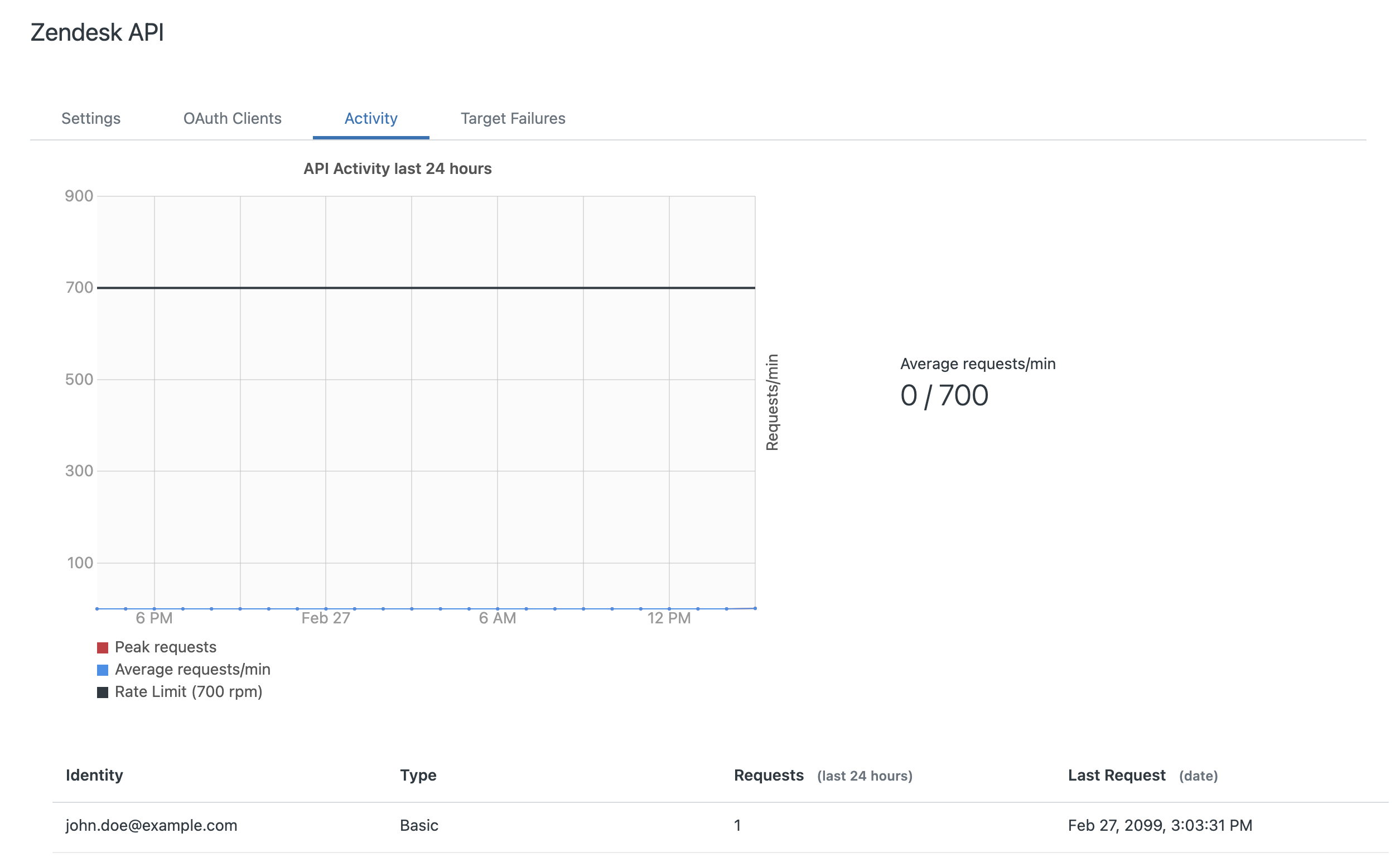
The page shows activity in the past 24 hours. The chart covers requests over time, while the table provides a breakdown of total requests by client. The clients are identified by the authentication credentials used. The table lists the names – or identities – of API tokens, OAuth clients, or users for basic authentication.
The chart scales based on the amount of activity, which can hide the rate limit line. With enough activity in the example, a horizontal line representing the rate limit would appear at the 700-requests mark.
The horizontal hourly scale is set to your local time, with the right-most mark the most recent hour.
Peak requests is the highest number of requests in a single minute in the hour. Average request/min is the average number of requests per minute during the hour.
Getting information about HTTP and URL target failures
If you're having trouble with an HTTP or URL target, you can view the information returned by the third-party service or REST API that the target tried to access.
To view target failure information
- In Admin Center, click the Apps and integrations
icon () in the sidebar, then select APIs > MorgWard APIs.
- Click the Target Failures tab.

Click an item in the list to see more detailed information about the failure.
Comments
0 comments
Please sign in to leave a comment.