


Administrators and Enterprise agents with permission can create and edit custom fields for organizations. Custom org fields are visible to agents, but not end users.
You can also add custom fields to users and custom fields to your tickets and support request forms.
Adding custom organization fields
Administrators and Enterprise agents with permission can create the following types of custom organization fields:
- Drop-down list
- Text
- Multi-line text
- Numeric
- Decimal
- Checkbox
- Regular expression
- Date
You can also watch this short video, but note that custom fields are now managed in Admin Center.
- In Admin Center, click the People icon (
 ) in the sidebar, then select Configuration >
Organization
fields.
) in the sidebar, then select Configuration >
Organization
fields. - Select a custom field type on the right, then drag it to the active fields area and
place it where you want it to appear. Alternatively, click the Plus sign (+)
beside the field type you want to add.
The order of your active custom fields here is the same order they will appear in each organization profile.
For more information about the field types, see About custom field types.
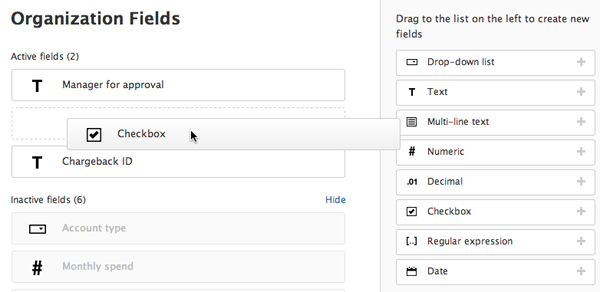
When you add the field type, the properties panel opens.
- Enter a Field title shown to agents and a Field key in the properties
panel on the right.
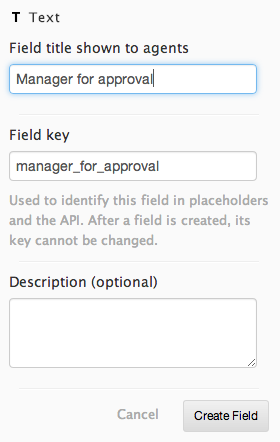
When you enter data in one of these fields, the other field automatically populates. You can edit either field, however, if you want them to be different.
You cannot change the field key after you create the custom org field. The field key is used by the API and Liquid placeholders, and it is the only field setting that is not editable after it is set.
- Set other properties for your field.
Options vary
depending on the type of field you are
adding.
If you are adding a drop-down list, you can have up to six levels of organization (see Organizing drop-down list options).
- Click Create field.
New organization fields are active by default and are added to all organizations.
- Triggers and automations (see Automatically tagging tickets from specific users and organizations)
- Placeholders in macros, ticket comments, and notification messages (see Placeholders for custom fields)
- Search (see MorgWard Support search reference)
- (Professional and Enterprise) Reporting (see Reporting with custom fields for Explore or Reporting on custom fields in Insights for Insights).
Managing custom organization fields
You can manage your custom organization fields in the Organization Fields admin page. You can edit, delete, activate, deactivate, and clone custom organization fields as needed.
- In
Admin Center, click the People icon () in the sidebar, then select Configuration >
Organization
fields.
- Click the name of the custom org field you want to edit.
- Edit settings in the properties panel on the right.
- Click Update field.
- In
Admin Center, click the People icon () in the sidebar, then select Configuration >
Organization
fields.
- Click the name of the custom org field you want to delete.
- Click Delete in the properties panel on the right.
When you delete a custom organization field, that field and any associated data is removed from all organizations. The data is preserved only if the custom field also adds a tag to the organization. The two custom fields that add tags are the drop-down list and the checkbox. If you delete one of these custom fields, then the data in organizations persist as tags.
- Click OK to confirm that you want to delete the custom organization
field.
The custom org field and any associated data is removed from all organizations.
- In
Admin Center, click the People icon () in the sidebar, then select Configuration >
Organization
fields.
- Hover over the custom org field you want to clone, then select Activate or
Deactivate.

The field moves to the active or inactive section depending on the action you selected.
- In
Admin Center, click the People icon () in the sidebar, then select Configuration >
Organization
fields.
- Hover over the custom org field you want to clone, then select Clone.
A duplicate organization field is created, and the properties panel opens on the right so that you can edit the settings.
Comments
0 comments
Please sign in to leave a comment.