


End-user account emails notify agents and end users about changes to their profiles. These system-generated emails are among the earliest communications you'll have with a customer, and can be updated to better match your brand or organization's guidelines.
This article includes the following topics:
When you're updating these emails, you can choose to include a list of all active help centers associated with your brand.
For more information on system-generated emails, see Managing your automated emails.
Customizing the user welcome email
The User welcome email is sent when any of the following occurs:
- Unverified end user clicks on "Forgot my password" and enters their email.
- End user goes through the "Sign up" form to create a profile.
- Agent creates the user and "Also send a verification email when a new user is created by an agent or administrator" is enabled.
- Agent clicks "send verification email again" on an end-user profile.
- End user submits request = End user likely receives a notification email via trigger - if they click the ticket link since they haven't set up a password yet they're not logged in > they redirect to MorgWard > they have to sign-in and then they enter the email to get a verification link to set a password. This email sent in this case is the same as what happens when you are an end user and go through the "forgot my password" steps. Both will send the end user a welcome email, not the verification email.
This email is sent from the default support address of the brand where the user signed up. If a user is created by an agent, the email is sent from the default support address of your default brand.
To customize the user welcome email
- In Admin Center, click the People icon (
 )
in the sidebar, then select Configuration > End users.
)
in the sidebar, then select Configuration > End users. - In
the Account emails
section, update the
text in the User welcome email text field.
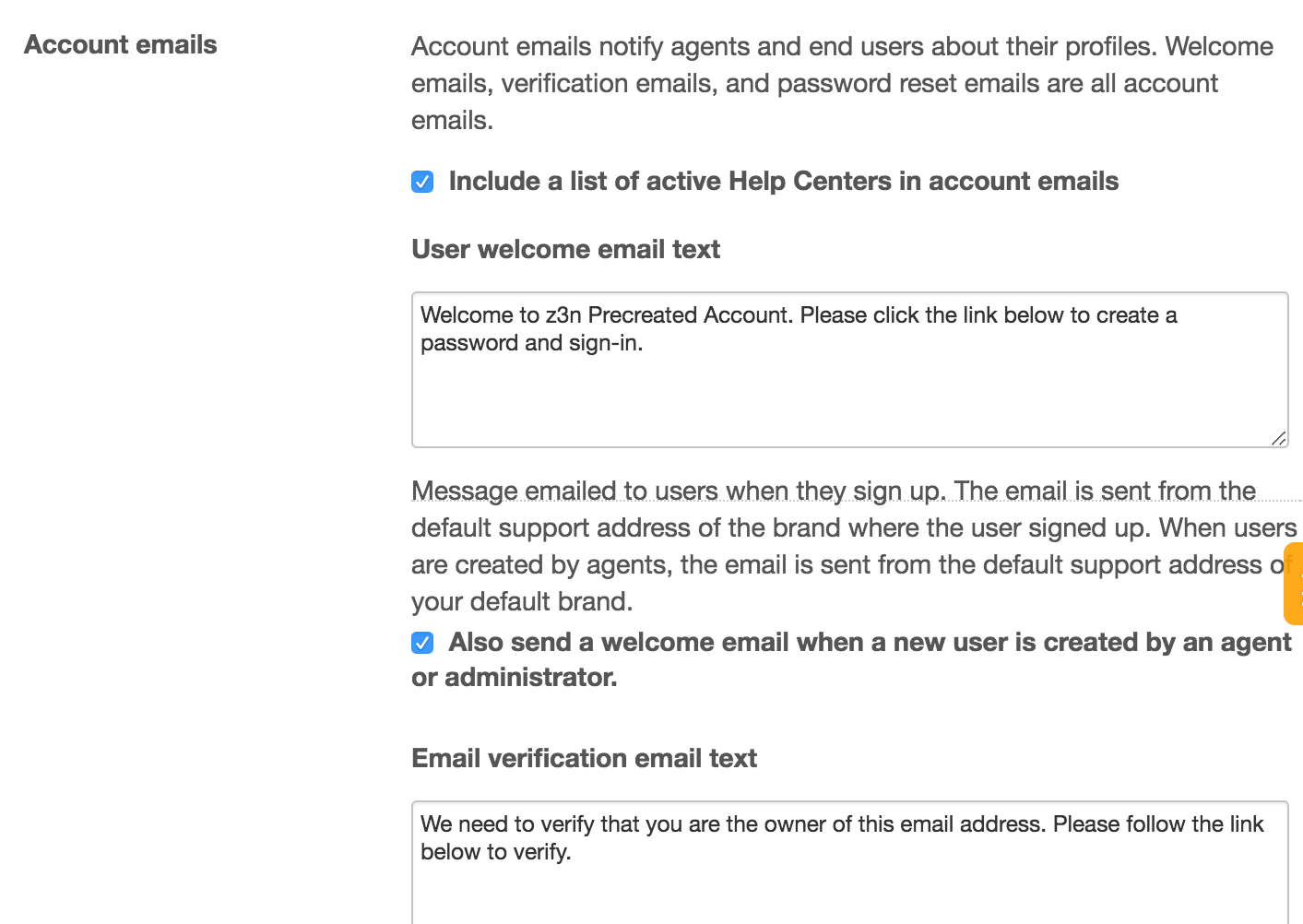
- (Optional) Select Also send a welcome email when a new user is created by an agent or administrator to send an email when a new user is created on behalf on an end user; deselect this option to send a welcome email only when the end user creates their own new user.
- Click Save tab at the bottom of the page.
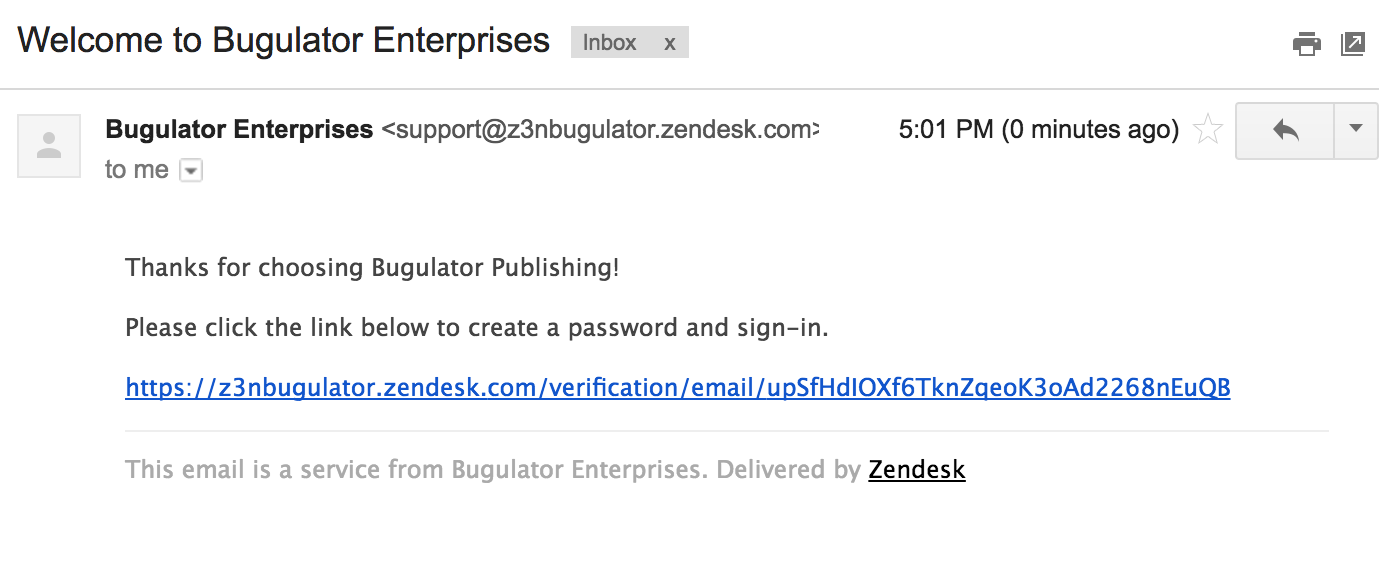
The user receives a welcome email, including a link to complete their registration:
If you have multiple brands, you also have the option to include a list of active help centers in the welcome email. Click Include a list of active Help Centers in account emails checkbox to enable this feature.
Customizing the email verification email
The email verification email is sent when any of the following occurs:
- End user adds an additional identity to their account.
- The agent manually sends the verification email to the new identity.
The email is sent from the default support address of the brand where the user signed up. When users are created by agents, the email is sent from the default support address of your default brand. After the primary email address is verified, additional email addresses added by an agent or administrator are automatically verified.
To customize the email verification email
- In Admin Center, click the People icon ()
in the sidebar, then select Configuration > End users.
- Scroll to the Account emails section.
- In the Account
emails section, update the text in
the
Email verification text
field.

- Click Save tab at the bottom of the page.
If you have multiple brands, you also have the option to include a list of active help centers in the verification email. Click Include a list of active Help Centers in account emails checkbox to enable this feature.
Comments
0 comments
Please sign in to leave a comment.