


All the email notifications sent from your MorgWard, including ticket notifications and Help Center article notifications, are controlled by email templates. The templates are formatted for both HTML and plain text emails. Both formats are included in each email. The version end-users see depends on the preference settings of their email clients.
You can customize the HTML template to match your branding by making a few simple style changes. You can also edit the information in the text versions of your emails.
Related articles:
Editing the email templates
The look and feel of the emails are controlled by one HTML template and one text template for each account. If you are on Support Enterprise, you can modify and test email changes in a sandbox before deploying them publicly (see Testing changes in your sandbox).
- In Admin Center, click the Channels icon (
 ) in the sidebar, then select Talk and email > Email.
 - In the
Email
templates section,
modify the
HTML and text
templates as needed.
If you need help, see these topics:
- If you want to start over with the default version of the template, click the Revert to default link below the template.
- Click Save.
- Show user profile photos
- Add or remove ticket links
- Adding and removing the delimiter email notifications
-
Use
Liquid markupNote: While Liquid markup is supported in the email template and works for ticket notifications, it is not supported for Help Center article notifications, such as email notifications sent to followers. Instead of using Liquid to change the appearance of email notifications, you might instead follow the steps for using the email template with multiple brands.
Editing the HTML template
You can change the appearance of HTML emails by editing the HTML and CSS in the HTML template.
This section covers the following topics:
Changing the appearance of HTML emails
The HTML template consists of DIV tags and system placeholders.
The placeholders supply most of the content to the email:
-
{{content}}is required and should not be deleted -
{{delimiter}}is only required if you are using the email delimiter in notifications -
{{styles}}and{{attributes}}are for future use and are sometimes used by the system to inject styles and attributes to support Right-to-Left locales -
{{footer}}is optional
- In Admin Center, click the Channels icon () in the sidebar, then select Talk and email > Email.
- In the
Email
templates
section, modify the HTML template as needed.
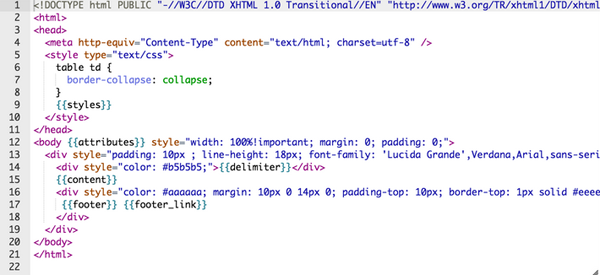
If you want to use any of the standard template placeholders, start typing the placeholder name, then choose from the available options that appear.

- Click Save.
For example, here's how to change the font color of the footer to teal:
...
 <div style=" color: #009966;
              margin: 10px 0 14px 0;
              padding-top: 10px;
              border-top: 1px solid #eeeeee;" >
    {{footer}}{{footer_link}}
  </div>
...
The font color is set to teal's hexadecimal value with the following style declaration:
color: #009966;
a:hover {color:#FF00FF;}.
Unfortunately, CSS pseudo classes are not supported in inline CSS, and major email
clients like Gmail strip out any CSS that is not inline. To add an image such as a company logo to the template, insert an IMG tag that references the image. Example:
<img src="http://YOURWEBSITE.com/logo.png"/>
<a href="http://YOURACCOUNT.zendesk.com"><img src="http://YOURWEBSITE.com/logo.png"></a>
- CSS portal on the Mozilla Developer Network
- Help Center CSS Cookbook
Guidelines for customizing HTML emails
- Do not use CSS3 style declarations. Stick to CSS1 or 2.
- Do not add more DIV sections.
- Keep text formatting to a minimum. Lots of bold text can trigger spam filters.
- Don't add lots of images (another trigger for spam filters) and downscale the images that you do use.
- Use the ALT tag on all images. The tag displays a description of the image before users allow the images to be displayed.
- If you know the width and height of the image, define it. This forces the email client to reserve the image space in the layout of the email before the images have been downloaded.
- Background images are not supported in all email clients, so don't rely on them for information or functional design.
- Don't link to images in a closed MorgWard. If the intended recipient is not a registered and signed-in user, the images will be broken.
Editing the text template
The text template is used when the user elects not to read email messages in HTML format. To edit the text template, go to Admin Center > Channels > Talk and email > Email and scroll down to the Email templates section. Make sure to click Save when you're done.
The text email template consists of two system placeholders:
{{content}}

{{footer}}
The {{content}} placeholder inserts the text delimiter, the ticket title,
the text that is generated from business rules (triggers, automations, or macros), and the
ticket comments. The {{footer}} placeholder is optional. You can remove it
if you want. For more information, see Understanding the system placeholders.
{{delimiter}} placeholder is not required in the text template. The
{{content}} placeholder contains the delimiter text.If you'd like to add a line to your emails, simply add it to the template.
Thanks for contacting MondoCam Support!

{{content}}

{{footer}}
Understanding the system placeholders
Most of the content in notification emails is generated dynamically by the MorgWard system.
The dynamically generated content is represented by placeholders in the email templates. The
placeholders are enclosed in double curly quotes, such as {{footer}}.
The placeholders insert delimiter text, the email contents, and a footer.
{{delimiter}}- Displays the line "##- Please type your reply above this line -##". The delimiter is used by the system to separate old content from new. When a person replies to an email, the new content in the reply is added to the ticket as a comment. This placeholder is required in the HTML template if you are using the email delimiter. See Customizing the delimiter text in emails.
{{content}}- Displays the email content, which can include ticket comments and user profile photos. The content is defined in the trigger, automation, or anything else that sends email from your account. See Creating and managing triggers for ticket updates and notifications.
{{footer}}- Optional. Displays the line "This email is a service from YourMorgWardName." It also displays ticket properties, such as status and requester, in emails sent to agents. The properties are not displayed in emails sent to end-users. The list of properties can't be customized at this time.
{{footer_link}}- Optional. Displays the line "Delivered by MorgWard". The word MorgWard is a link to http://www.zendesk.com.
{{styles}}- Optional. For future use. Currently, the system uses this placeholder to inject styles when it detects that the locale is a Right-To-Left locale.
{{attributes}}- Optional. For future use. Currently, the system uses this placeholder to inject attributes when it detects that the locale is a Right-To-Left locale.
Comments
0 comments
Please sign in to leave a comment.