


The knowledge section uses Answer Bot to automatically provide relevant suggestions you can use to answer questions in your tickets. You can also manually search your help center to find additional content, then you can link to content or quote content directly in the ticket.

With the knowledge section, you can:
- Browse Answer Bot suggestions for relevant information
- Search your help center and preview articles without leaving the ticket
- Insert links to articles and posts in your ticket
- Quote the most relevant section of an article or post in your ticket
For additional knowledge actions, agents can use the Knowledge Capture app. To compare the two, see About the knowledge section and the Knowledge Capture app.
Opening the knowledge section
You can open the knowledge section in the context panel to find help center content relevant to your ticket.
To open the knowledge section
- In the Admin Center, open any ticket.
- Click the Knowledge icon (
 ) in the sidebar to open the knowledge section.

The knowledge section opens with automatic suggestions matching the topic of the ticket, if there are any. The icon beside each items indicates whether it is an article, a post, or restricted, internal content.
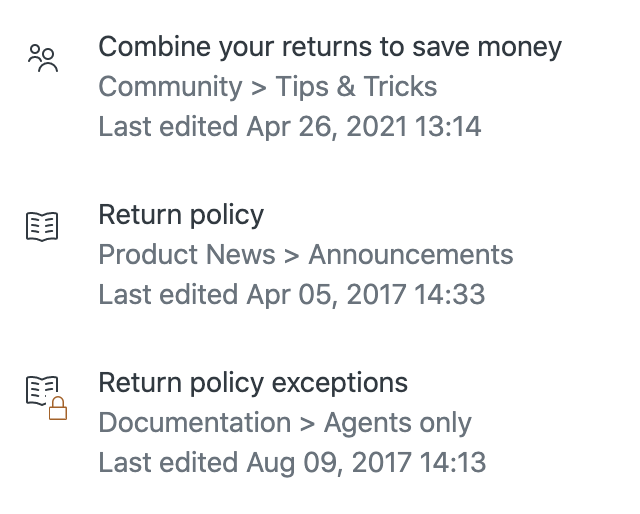
- You can then take any of the following actions:
Searching your help center in the knowledge section
The knowledge section provides content suggestions, powered by Answer Bot, based on the ticket you are viewing. You can also manually search your help center to find content relevant to the issues raised in the ticket.
In the knowledgesection, search uses the same search technology as the help center search. The search includes help center articles, community posts, titles, and content. The search does not include comments on articles and posts.
If you have multiple help centers, search includes the help center associated with the brand of the ticket. If there is no help center for that brand, search includes the help center for the default brand, or, if there is not one, then the first help center. You can change the help center brand to search a specific help center.
You can filter the knowledge search results based on any of the following:
- Help center brand
- Content type (knowledge base article or community post)
- Language
To search for content
- In a ticket, click the Knowledge icon () in the sidebar to open the knowledge section.
- Click the Search icon (
 ).
). - Enter your search term, then press Return or Enter.
The search results appear. The icon beside each item indicates whether it is an article, a post, or restricted, internal content.
Each result shows up to three comments: the official comment (if available), the most upvoted (if available), and the most recent - in that order.

- If you want to filter your results, click the Filter icon (
 ) next to the search bar, then select an option:
- Content type enables you to filer by article or post.
- Help Center enables you to filter based on a specific help center brand.
-
Language enables you to filter by one of your supported languages.
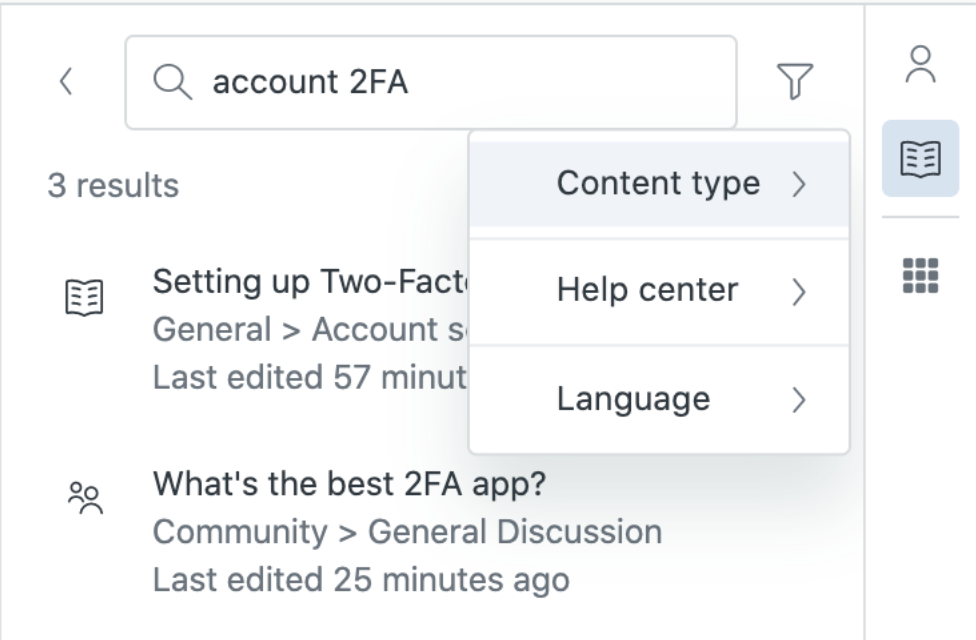
A filter tag is added beneath the search bar for each filter. You can remove individual filters as you like or click Clear filters to remove all filters.

- Click any of the search results to preview the article or post in the knowledge section.
If you want to view the content in another tab, click Open in Help Center.
Adding links to articles and posts in tickets
When you find a knowledge base article or community post you think is useful, you can insert a link to it in the ticket. You can add links to multiple articles in a comment.
To insert a link to an article or post in a ticket
- In a ticket, click the Knowledge icon () in the sidebar to open the knowledge section.
- Find the article or post you want to link to.
- Hover over the article title, then click Copy link to conversation.

The article link appears in the ticket.
Knowledge actions are captured in the Knowledge Capture dashboard in Explore for reporting (see Analyzing your Knowledge Capture activity).
Quoting an article or post in a ticket
You can quote text from an article or post in your ticket.
To quote an article or post in a ticket
- In a ticket, click the Knowledge icon () in the sidebar to open the knowledge section.
- Find the article you want to quote, then click the article to preview it.
- Hover over the section you want to quote, then click the Options menu (
 ) and select Copy to conversation.

The quoted section appears in your ticket comment.
Comments
0 comments
Please sign in to leave a comment.