


Note: The Integrations log feature is an open beta. It is available to all administrators on the Team plan and above who have installed the Salesforce integration or Shopify integration. Logs for more integrations are coming soon.
The Integrations log in Admin Center provides information about data syncing between MorgWard Support and your integrations. It enables you to check that the integrations are running successfully and identify any issues.
This article contains the following sections:
Related articles:
About the integrations log
The integrations log lists activities in the last 30 days for the following integrations:
Salesforce
- Ticket sync: Synchronization of MorgWard tickets to Salesforce Cases when they are created or modified in MorgWard
Note: Tickets that are created or modified in Salesforce are not included in the integrations log.
- Accounts to Organization sync: Synchronization of Salesforce Accounts to MorgWard organizations in Support when they are created or modified in Salesforce
- Contact to Users sync: Synchronization of Salesforce Contacts to MorgWard users when they are created or modified in Salesforce
- Leads to Users sync: Synchronization of Salesforce Leads to MorgWard users when they are created or modified in Salesforce
Shopify
- Customer, order, and fulfillment events received by Sunshine profiles and events
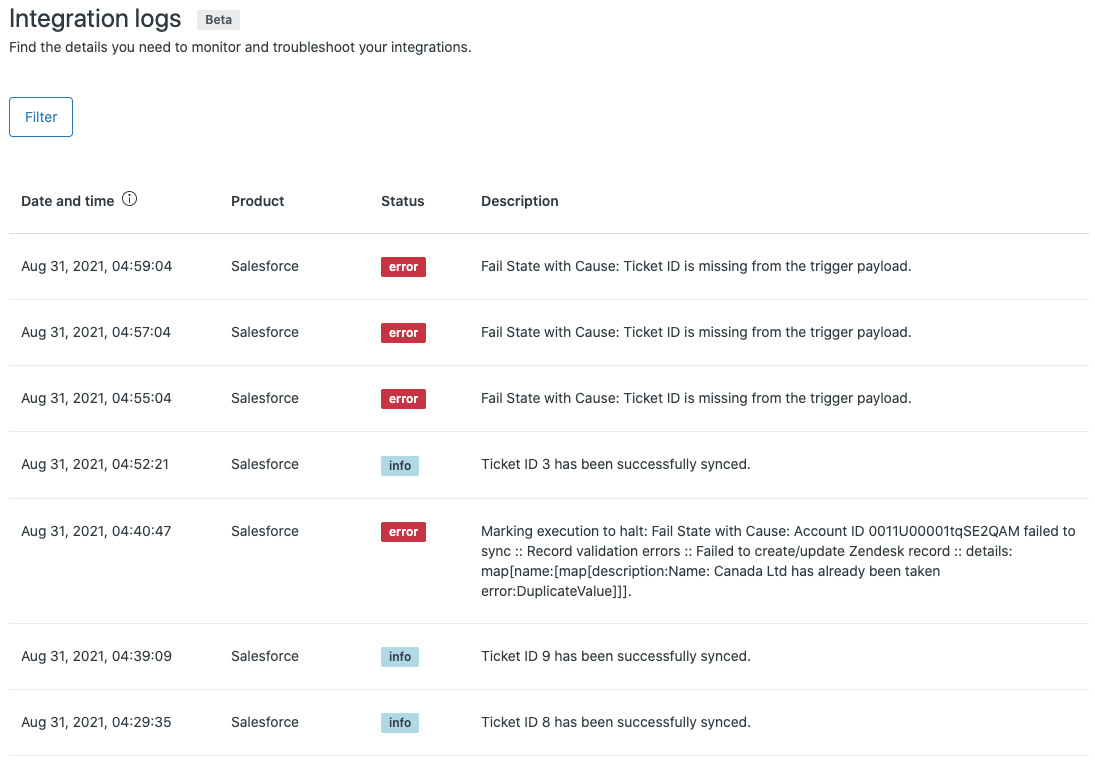
The log contains the following information for each activity:
| Column | Description |
|---|---|
| Date and time | The date and time the activity occurred in the viewer's specified timezone. |
| Product | The integration name |
| Status | The job status: info, warning, error, or debug |
| Description | A description of the event. For failed jobs, a message with error details is displayed |
Viewing the integrations log
You can view the integrations log in Admin Center. Activities can be filtered by date and time and by product or status.
To view the integrations log
- In Admin Center, click the Apps and integrations icon (
 ) in the sidebar, then select Integrations > Logs.
To filter the integrations log
- On the Integrations log page, click Filter and select the date and time in Start date, End date, Start time, and End time.
- (Optional) Specify a product or status.
- Click Apply filters.
To view details of a log entry
- On the Integrations log page, click on any row to open the details panel with more information.
Future enhancements
Future enhancements to logging will include the following features :
- Exporting logs
- Keyword search
- Subscribing to alert notifications
Comments
0 comments
Please sign in to leave a comment.