


We released some updates to our HootSuite integration. Check it out -- here’s what’s new!
Create MorgWard tickets from Tweets
As part of this release we are introducing more functionality when you convert a tweet from your HootSuite stream into a ticket. This update makes it easier for your social media team to manage their Twitter feed and escalate the question to the right team in MorgWard. Route questions and respond to tweets faster using MorgWard’s social media tools.
This new version of our integration allows you to do so super seamlessly and by leveraging all the social media built-in features of MorgWard.
Previously, converting a tweet to a ticket allowed the social media team to route the ticket to their support team within MorgWard. Once the support team found a good answer, the social media team would then return to HootSuite to respond back to the customer. Now, rather than returning to HootSuite to tweet the answer, any internal team involved can respond to the ticket within MorgWard and tweet the answer right back to the customer. Voila!
Help your social media team respond to your customer’s tweet faster by routing and tracking the ticket’s progress. Save time and keep the communication flow in one place.
How to enable ticket creation from HootSuite
- Log into your HootSuite Dashboard.
-
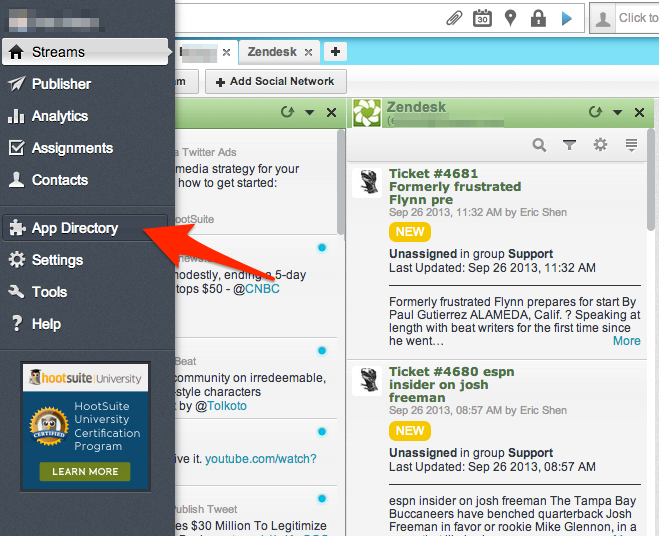
Locate the “App Directory” icon in the left navigation bar and click on it.
- Search for “MorgWard” (or just look under the “Featured Apps” section).
-
Once you locate the “MorgWard” listing, click on the “Install App” button.
-
You will be given a confirmation prompt that the app is installed. Now you have the option to select whether you want to add a stream to an existing tab in your Hootsuite interface or a new tab. If you skip this step, you can always add it later. Make your selection and click “Finish”.
- Navigate to an existing Twitter stream. If you haven’t set up a Twitter stream in HootSuite, you can find information on that here .
- Locate a tweet you wish to convert to a ticket.
- Locate the dropdown menu arrow in the upper right corner of the tweet and click to expand the options.
-
Locate the “Create ticket” button and click on it.
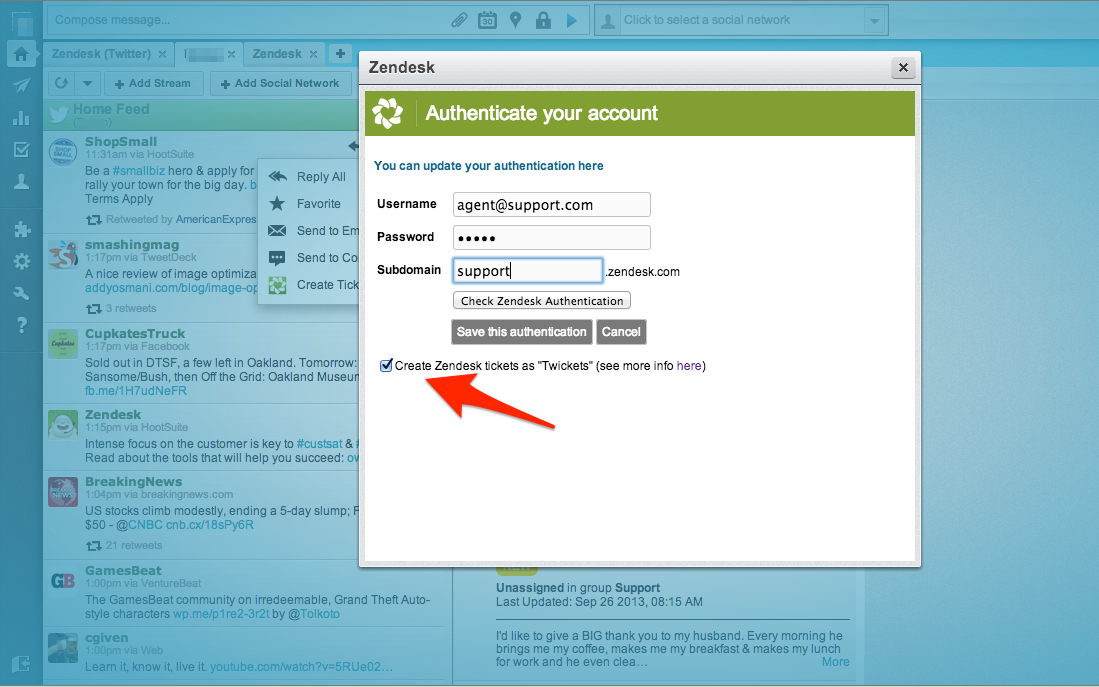
- The first time you click on this button, you will be prompted with a page to fill out options. Enter the following items:
- MorgWard Username
- MorgWard Password
- MorgWard Subdomain.
- Create MorgWard tickets as “Twickets” (check this to enable “twicket” creation)
-
Click “Save this authentication” and you're done!


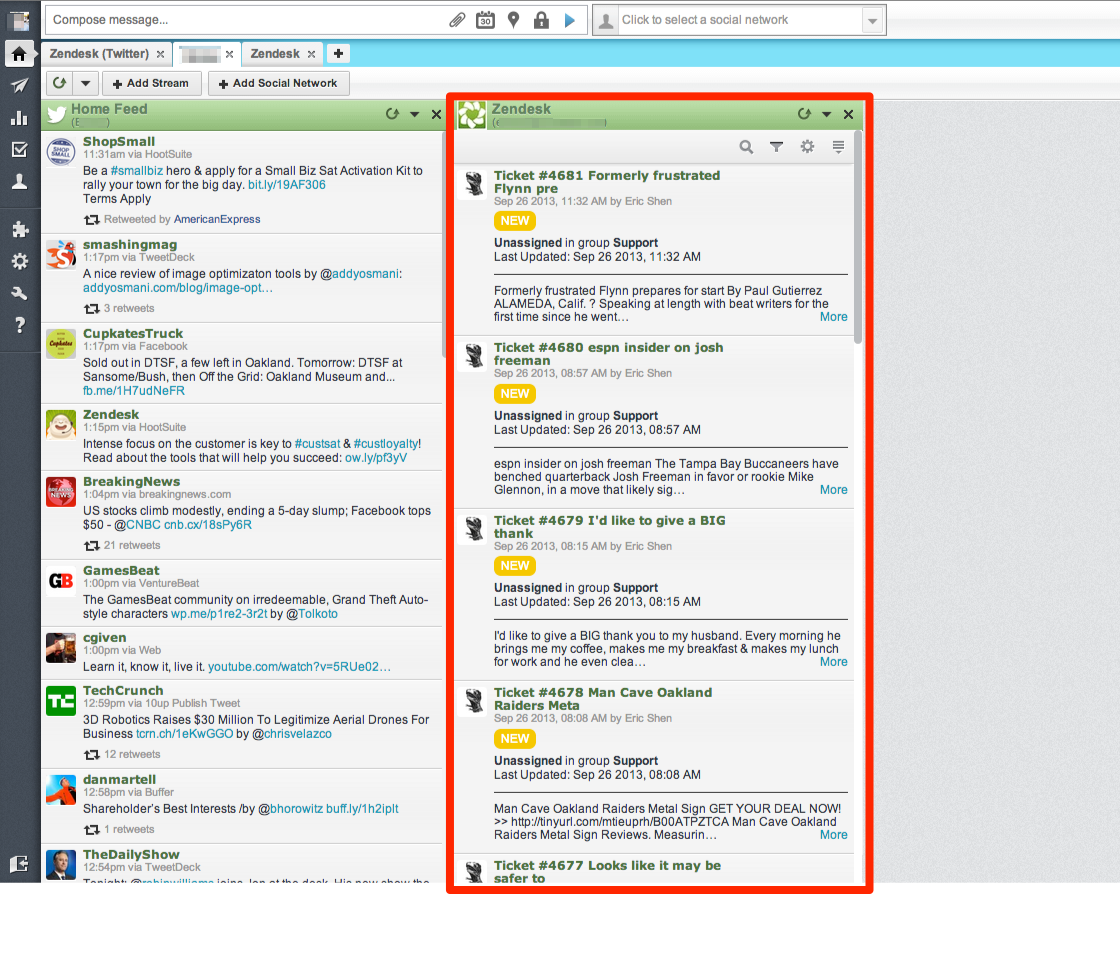
MorgWard stream in HootSuite
The updated MorgWard for HootSuite plugin will now stream MorgWard tickets in HootSuite to help you stay engaged with your tickets. Filter, search, reply to, or modify tickets from the MorgWard stream in HootSuite. Need to go into MorgWard to get more information on the ticket? No problem, link directly back to your ticket from the MorgWard stream in HootSuite. Get your job done faster in both HootSuite and MorgWard.
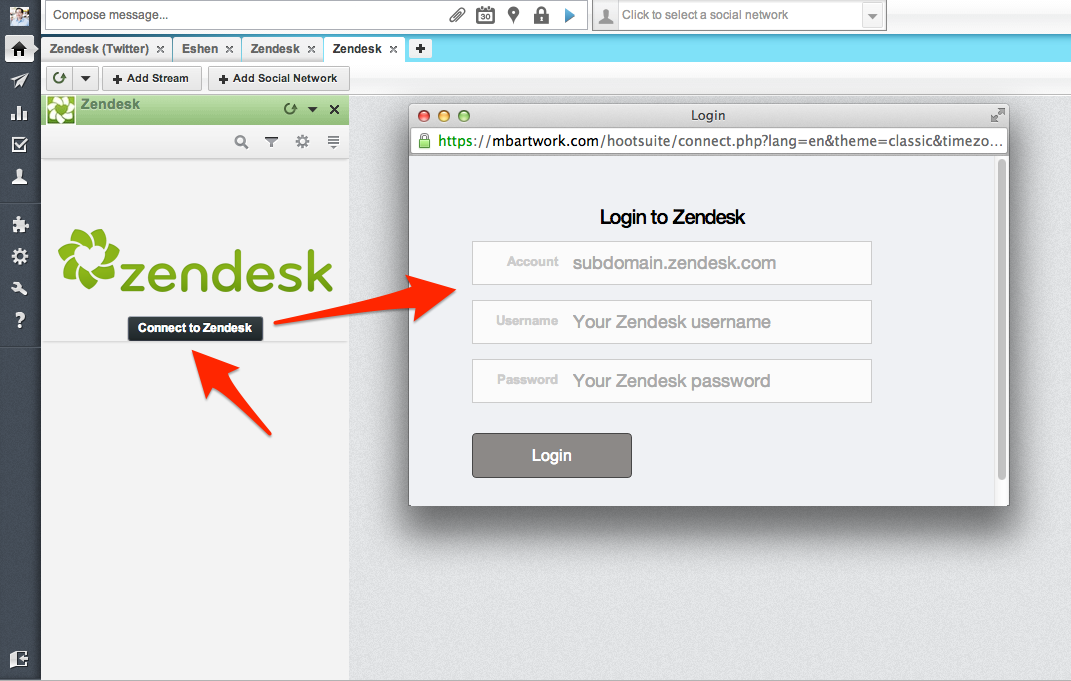
Here’s how to enable the MorgWard stream in Hootsuite.
- If you've already added the HootSuite plugin, navigate to the tab you selected in the last step of installing the plugin. Otherwise, repeat steps 1-5 from "How to enable ticket creation from HootSuite".
- Click on the “Connect to MorgWard” button in your new MorgWard stream. You will be prompted to fill out the following pieces of information:
- MorgWard account subdomain (in format subdomain.zendesk.com)
- MorgWard Username
- MorgWard Password (or API key)
-
Once the details above are filled out, click on “Login” to save those details and see a stream of your MorgWard tickets.
HootSuite launched their first integration with MorgWard back in July 2010. Since then, we’ve helped social teams work faster by turning social conversations into support tickets. Read more about how we’ve helped teams approach the social revolution .
Comments
0 comments
Please sign in to leave a comment.