
There are some use cases where tickets in a Support account may be entirely internal. The default metrics provided within Insights do not account for tickets with only private comments, so you will not be able to use them in your report. This article will outline how to create a custom metric and setup a report that tracks only internal tickets.
Skill level: Basic
Time required: 10 minutes
Ingredients:
- One custom metric
- One filter
Procedure
This recipe will instruct you on how to create your custom metric and build a report for tickets containing only internal comments.
This procedure contains the following sections:
Creating your metric
The metric # Public Comments will count private comments as a Null value instead of a 0. This means that the first step in setting up this report is to create a custom metric that will display any Null values for # Public Comments as a 0.
To create your custom metric
- Click the Reporting icon (
 ) in the agent interface, then select the Insights tab.
 - Click the GoodData link in the upper right corner.
- Click Reports.
- Click Create Report.
- In the What menu, click the (advanced) link next to Add new metric.
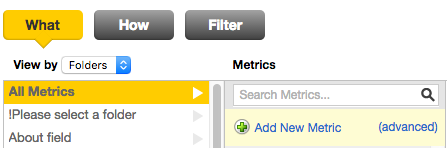
- Select Custom metric.

- Enter the following formula in the Formula Editor.
Note: You must select all color-coded elements from the Elements folder on the right panel. If you type them, the metric will not render.
SELECT IFNULL (# Public Comments, 0)

- # Public comments is in Metrics listed under the Ticket Comments folder.
- Click Add when you are finished creating the metric.
Creating your report
After you've created your custom metric, you can then go ahead and create your report. This section will instruct you on how to configure your report. You will need to create a filter that uses your custom metric to only show internal tickets.
To create your report
- In the What panel, select the # Tickets metrics.
- In the How panel, select Ticket ID.
- Click Done.
- Click the Filter button to add a filter, then select Numeric Range Filter.
- Select the Ticket Id as your attribute.
- Select your custom metric and the range is equal to 0.

- Click Apply.
You can then configure any custom chart options and publish your report. See Building custom reports in Insights for more information on creating and customizing reports.
Comments
0 comments
Please sign in to leave a comment.