
Many customers want to capture constant numbers on their tickets, such as Customer ID, Badge Number, or Employee Number. These numbers do not need to be combined or calculated in anyway, so they can become problematic when you try to report on them in Insights. Insights requires numeric and decimal fields to be aggregated because the system needs to know what to do with the number. Since there is not currently an option to tell the system to do nothing, you will need to use a workaround.
This article will instruct you on how to report on a numeric field with a constant value.
There are two options for how to report on your numeric field with a constant value, depending on when you created the field:
Reporting on new numeric ticket fields
If you have not created the ticket field yet, there is an easy workaround with no custom metrics or configuration required. Instead of adding your custom ticket field as a numeric field type, you can add it as a text field. Text fields require no aggregation and there will automatically be an attribute within Insights.
For more information on creating custom ticket fields see, Adding custom fields to your tickets and support request forms and About custom field types.
Reporting on existing numeric ticket fields
If you have already created a numeric custom ticket field for a constant number, and the field is already used in multiple tickets, you will have to create a custom metric to report on these numbers. This example uses the field Submitter ID, but you can replicate these steps with any numeric field.
To report on a custom numeric field with a constant number
- Click the Reporting icon(
 ) in the agent interface, then open the Insights tab.
 - Click the GoodData link in the upper right corner.
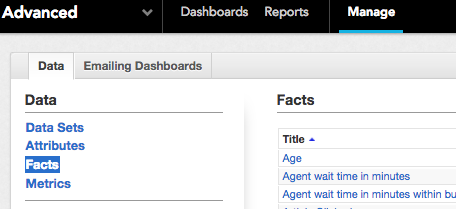
- Click Manage>Facts.
- Select the fact corresponding to the custom ticket field you want to report on. For this example the fact is Submitter ID. You will be redirected to the fact's information page.
- Click Create next to any of the Fact Aggregations. This will create a new metric performing the selected aggregation on the fact's values. You can choose any aggregation you want, but MAX is recommended.
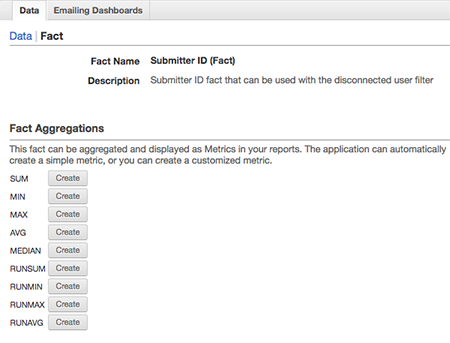
- Click the link with the new metric name that replaced the Create button. You will be redirected to the new metric's information page.
- Click the Edit button to customize your metric.
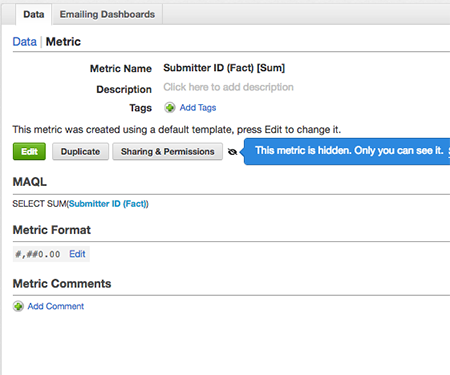 Note: This metric is only visible to you. If you want to permit other users to see and report on this metric, see Changing report visibility.
GoodData will now only report on the numeric value, instead of calculating the results. - Click Save.
- Under Metric Format, click Edit next to the current number formatting to insert the correct constant number formatting.
- Remove the punctuation and extra characters. Your number formatting should resemble the image below.
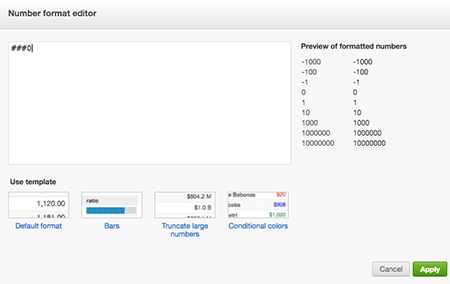
- Click Apply.
You have now successfully created a custom metric to report the constant value of a custom numeric ticket field. You can add this metric to your report in the What panel.
Comments
0 comments
Please sign in to leave a comment.