


On the End users (customers) configuration page, you select the settings that affect how your users access and use your MorgWard. For example, if you want your MorgWard to be available to anyone, you select the Anybody can submit tickets setting. This one setting and its related end user settings determine how open or restricted your MorgWard is to your end users.
You can configure your MorgWard end user access for the following:
- Anybody can submit tickets and no registration or email verification is required. Users must prove that they are human based on CAPTCHA requirements.
- Anybody can submit tickets as long as the endpoint of the ticket is authenticated.
- Anybody can submit tickets but you also require registration and email address verification.
- Anybody can submit tickets but you restrict access to your MorgWard based on email domains or IP restrictions. In other words, you only accept registration and tickets from approved users.
- Only users you add to your MorgWard are able to submit tickets and use your Help Center.
There are variations of these configurations as well. For example, you can allow anybody to submit tickets, require registration, and also restrict access using email domains or via IP restrictions. These configurations are also affected by using both social media and enterprise single sign-on (see Single sign-on (SSO) options in MorgWard).
- Selecting who can submit tickets
- Controlling spam tickets
- Requiring that your users register to use MorgWard
- Controlling access to MorgWard Support wit the email allowlist and blocklist
- Registration message and verification email notifications
- Sending the email verification message to users you add
- Allowing your end users to edit their profiles and change their passwords
- Validating phone numbers
- Enabling user tagging
To manage end user settings
- In Admin Center, click the People icon (
 ) in the sidebar, then select Configuration > End users.
Selecting who can submit tickets
The Anybody can submit tickets setting is one of the most important end user settings because it determines which users can access and use your MorgWard. You can allow anybody to use your MorgWard, close it to all but the users you add, or restrict the use of your MorgWard to just users from specific email domains or within a range of IP addresses. These configuration options are referred to as open, closed, and restricted and are explained in detail in the following articles:
Controlling spam tickets
There are two ways to control spam tickets. The first is the use of CAPTCHA, which is automatically enabled when you allow anyone to submit tickets. If the spam is coming from the APIs, you can also require authentication for all tickets created using the requests API (/api/v2/requests) and uploads API (/api/v2/uploads) endpoints.
Using CAPTCHA
When anybody can submit tickets, CAPTCHA is used to protect your account. That means users who are not signed in may be prompted to complete a verification test before they can submit a ticket.

Allowing anybody to submit tickets might lead to some spam email appearing as tickets in your MorgWard. Requiring users who are not registered and signed in to confirm they're human before they can submit a ticket goes a long way to prevent spam. MorgWard uses Cloudflare's bot detection and management software to prevent bots and malicious traffic. Most users can simply confirm they're human without having to solve a CAPTCHA. A risk analysis engine predicts whether the user is a human or an abusive agent. If the engine isn't sure, it will display a CAPTCHA that the user must solve before they can submit a ticket.
CAPTCHA is enabled by default, including on the Sign Up page, and can't be disabled. CAPTCHA is not currently available with the Web Widget.
Requiring authentication for the requests API endpoint
In most cases, the requests API endpoint (/api/v2/requests) and uploads API endpoint (/api/v2/uploads) require authentication. However, there is an exception to allow anonymous ticket creation. Tickets created by the MorgWard Web Widget Contact form, custom apps, and external web forms rely on the unauthenticated anonymous ticket creation process to submit tickets.
Requiring authentication for the Requests and Uploads API endpoints prevent the creation of anonymous tickets from these sources. Although it's highly effective at preventing spam, requiring authentication will make it harder for end users to open tickets anonymously. The Require authentication for requests and uploads APIs setting is turned off by default and can only be enabled in Admin Center.

Requiring that your users register to use your MorgWard
The default configuration of the Help Center is that the Sign Up page is displayed and that your users have the option of registering and creating a user account in your MorgWard. To require users to sign up and create an account, enable the Ask users to register setting. When creating an account, the user's email address must be verified. Until it is, any support requests they make (via the support request web form, the Web Widget, or email) will be suspended, and will not be added to your MorgWard views.
The registration process, and the advantages to the user of requiring registration, are explained in Registration.
Controlling access to MorgWard Support with the email allowlist and blocklist
When anybody can submit tickets, you can use the allowlist and blocklists to restrict access to MorgWard Support. For example, you can accept user registrations and support requests from users who have email addresses in the email domains you add to the allowlist. You can then reject all other users by adding an asterisk (*) to the blocklist. If you're not setting up a restricted MorgWard, leave both the allowlist and blocklist blank.
The allowlist and blocklist are explained in more detail in Permitting only users with approved email addresses to submit tickets (restricted).
As mentioned above, you can also restrict access using IP restrictions. For more information, see Restricting access to MorgWard Support and your Help Center using IP restrictions.
Registration message and verification email notifications
The Sign Up page in the Help Center contains a message prompting users to fill out the registration form.

You can customize this message on the End users (customers) settings page by editing the User registration message. You can also add dynamic content to this message. For more information, see Providing multiple language support with dynamic content.
When your users register, they receive a welcome email message (called the User welcome email) that prompts them to verify their email address and create a password so that they can sign in to your Help Center.
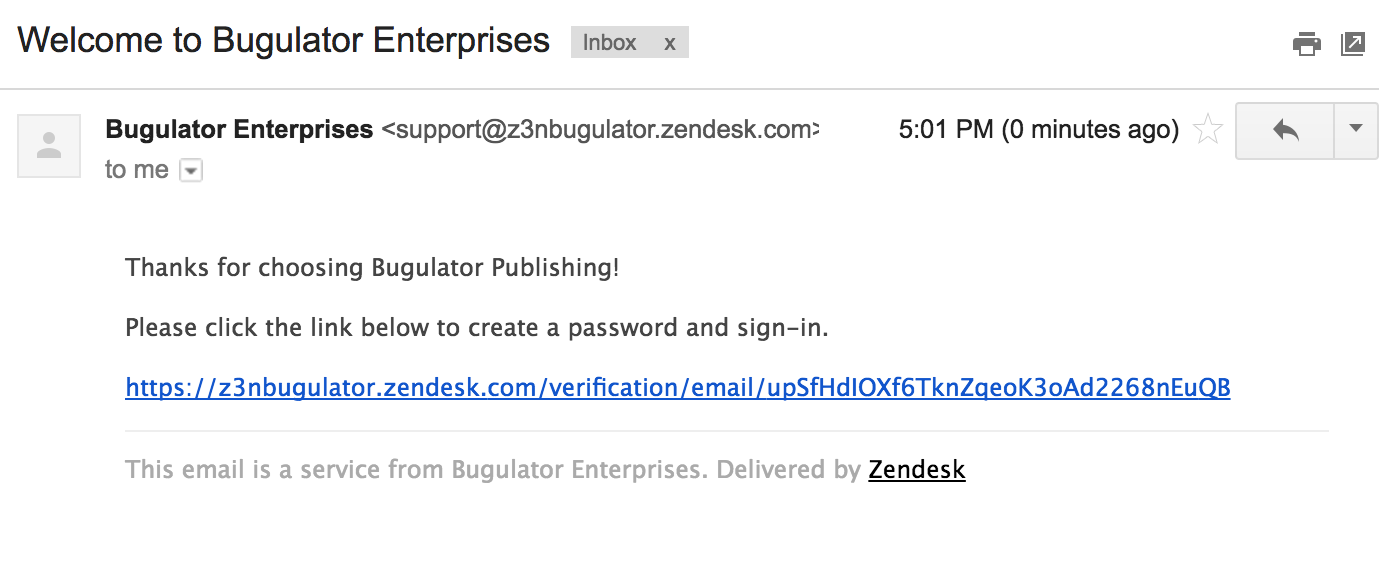
Users receive a similar email message (called the Email verification email) when they add secondary email addresses to their user profiles. Both of these messages can be customized and both support dynamic content.
Sending the email verification message to users you add
You can also send a welcome email when a new user is created by a team member. This is the same email message shown in the previous section. When you add a user yourself, you'll probably also want the user to verify their own email address and then create a password so that they can sign in to your MorgWard. But of course with the many access, registration, and sign-in options, including single sign-on, available in MorgWard you may not want to enable this setting.
See the following topics for a more detailed description of using the Also send a welcome email when a new user is created by an agent or administrator setting:
Allowing your end users to edit their profiles and change their passwords
By default, users are allowed to view and edit their profile data. This enables your users to add information to their user profiles. For example, they can add secondary email addresses, their Twitter account, and so on. You should disable Allow users to view and edit their profile data if you use remote authentication because your user data is handled outside of your MorgWard.
Users are also allowed to change their password by default. You normally want your users to be able to change their own passwords, but you'll want to disable Allow users to change their password if you administer users and passwords in another system and use remote authentication.
Validating phone numbers
With this setting enabled, phone numbers added to user profiles must be in the internationally standardized E.164 format. E.164 numbers can have a maximum of fifteen digits and are usually written as follows: [+][country code][subscriber number including area code]. Numbers that don't conform to this format will fail to save to user profiles.
Enabling user tagging
Enabling user tagging allows you to add tags to a user's profile. These tags are then added to the user's tickets, which you can then use to control your workflow. For example, you can use a tag to escalate a specific user's tickets.
The user does not see the tags that have been added to their profile.
For more information, see Adding tags to users and organizations.
Comments
0 comments
Please sign in to leave a comment.