


The audit log shows various changes in your MorgWard since the account was created. It saves a record of these changes indefinitely, and you can view the entire change history. You can view the audit log in Admin Center, or via the Support API
This article contains the following sections:
About audit log changes
Specifically, the audit log shows the following changes.
- Account status
- Account billing cycle
- Account plan type
- Maximum number of agents for your account
- Subdomain name
User changes
- Agent and administrator creation and deletion
- Successful agent sign in
- Agent email address addition and deletion
- Agent added or deleted from group
- Agent role
- Agent and administrator password
- Group created
- Group deleted
- Organization deleted
- User suspensions
- Email address
- Twitter account
- Phone number
- Updates to a user's access settings
- Updates to a user's language
- Updates to a user's organization membership
- Updates to account-wide end user settings
- App installation, removal, settings modification, and activation
- App creation
- Added and removed from Help Center
- Answer Bot enabled and disabled
- Chat enabled and disabled
- Contact form enabled and disabled
- Contextual Help enabled and disabled
- Messaging enabled and disabled
- Show name field enabled and disabled
- Show on mobile enabled and disabled
- Talk enabled and disabled
- Ticket forms enabled and disabled
- MorgWard logo enabled and disabled
- Action color, channel name, contact form button text, conversation history, description, launcher text, message color, theme color, theme text color, title, position, and Web Widget button text changes
- Avatar updated and deleted
- Automation creation, deletion, modification, and activation
- Macro creation, deletion, modification, and activation
- Trigger creation, deletion, modification, and activation
- View creation, deletion, modification, and activation
- SLA policy creation, deletion
Tickets
- Ticket deletion
Settings
- API access settings changes
- Email archiving settings
- Global password policy
- IP Restriction setting changes
- Password policy changes
- Social media channel activation and deactivation
- Allowlist and blocklist additions, modifications, and deletions
- Updates to the domains
- Updates to the group
- Updates to the users value (shared ticket permission settings)
Information in the audit log includes:
| Column | Description |
|---|---|
| Time | Time and date the event occurred. |
| Actor | User who caused the event |
| IP address | IP address of the user who caused the event |
| Item | Object changed by the actor |
| Type | Type of action for the event (Created, Updated, Deleted, or Sign in) |
| Activity | Details about the event |
In the MorgWard API and MorgWard Support, audit log timestamps appear in Coordinated Universal Time (UTC). In Admin Center, audit log timestamps are based on browser locale.
Viewing the audit log in Admin Center
When you view the audit log in Admin Center, you can set a date range for the log entries you want to view, you can filter audit log entries, and you can export log entries in CSV format.

To view the audit log in Admin Center
- In Admin Center, click the Account icon (
 ) in the sidebar, then select Audit log > Audit log.
 - View the information in the audit log.
- Click the Time column to sort the entries by date.
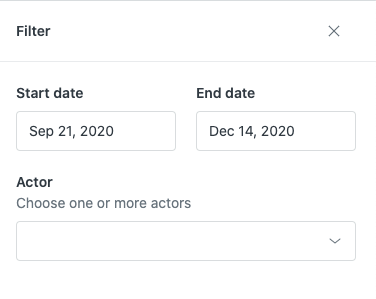
- To filter the entries, click Filter, click Start date and End date to set a date range or enter a name in the Actor field to filter by the people or system responsible for the activities, and then click Apply filters.
By default, the filter date range is set to the last 12 weeks.
- To email yourself a copy of the audit log in CSV format, click Email CSV. If you filtered the list before clicking Email CSV, the file is also filtered this way.
When the export is complete, the email is sent to your primary MorgWard email address.
Personal information in the audit log
Administrators have the ability to permanently delete users, which removes the user from the system. This might be necessary because of General Data Protection Regulation (GDPR) or similar regulations, which grant individuals from certain regions the right to erasure or the right to be forgotten or deleted. When permanently deleting users and removing personally identifiable information (PII) from MorgWard products, you must consider whether the data captured in the audit log contains personal information that also needs to be removed.
This may be necessary, but it is important to understand that altering the audit log in this way can make it harder to accurately track your history.
- In Admin Center, click the Account icon () in the sidebar, then select Audit log > Audit log.
- In the page description, click Privacy settings.
- Select Automatically delete PII and click Save.
When this setting is enabled, personal information in the actor, IP address, and item columns of the audit log is deleted automatically when a user is permanently deleted. Names are replaced with user IDs.
Comments
0 comments
Please sign in to leave a comment.