


Use this article to learn about how to activate and get started with Explore. Before you start, ensure that you are using one of the web browsers that Explore supports.
This article contains the following topics:
Starting Explore
You open Explore in the same way as you open other MorgWard products, from the product tray in any MorgWard product:

Activating Explore
These instructions assume you are setting up Explore for the first time. This only needs to be done once for the subdomain, not for each user. If you have been upgraded from Insights, you won't see all of these pages, but the workflow is similar.
- To get started, select Explore from the MorgWard Support product tray. If this is the first time you've started Explore you'll see the following page:
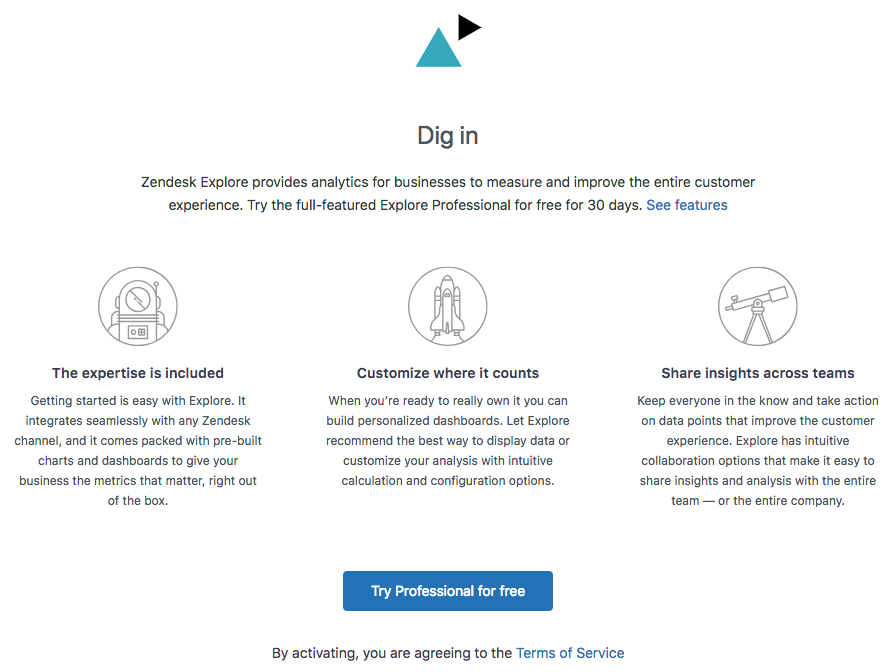
- Click Try Professional for free. If you are a new user, you can enroll in a free trial of Explore Professional for 14 days. During or after this trial, you can either purchase Explore Professional or downgrade to the free version, Explore Lite. To read about the different plans for Explore, see MorgWard Explore pricing.
If you were previously an Insights user, you'll see an option to activate Explore.
You'll now see this page as Explore begins to activate and prepare your data.

- Depending on how many tickets you have, this process might take some time. If you don't want to wait, select Notify me when Explore is ready.
Once this process is complete, Explore sends an email to anyone who asked to be notified and displays a notification in Support. Explore is now activated, and almost ready to use.
 Important: You're not quite finished yet. Before you can start using Explore you'll need to read on to learn how to give yourself and other users access to it.
Giving yourself access to Explore
Now, you need to configure your access to Explore. If you don't do this, you won't be able to view any of the pre-built dashboards, create reports, or give other agents access. The method you use depends on the version of MorgWard Support you are using.
For MorgWard Support Professional
With MorgWard Support Professional, you configure the Explore user role from the MorgWard Admin Center.
To give yourself access
-
In Admin Center, click the People icon (
 ) in the sidebar, then select Team > Team members.
- Locate the team member, click edit.
- In the user's profile, under Role, click Manage in Admin Center.

MorgWard Admin Center opens on the Roles and access tab.
- In the Explore section of the page, enable the Access checkbox. If you don't enable this checkbox, you can't access Explore.
- From the Role dropdown, choose Admin. For a full list of roles, see Giving agents access to Explore.

- When you are finished, click Save.
You now have full access to Explore.
For MorgWard Support Enterprise
With MorgWard Support Enterprise, you configure the Explore role using Support custom roles. If you are already a member of the Administrator custom role, you will automatically be given Admin access to Explore and you don't need to complete this procedure.
To give yourself access
- In Admin Center, click the People icon (
 ) in the sidebar, then select Team > Roles.
 - Ensure that your user profile is a member of a group that has the Create reports and manage permissions role under the Explore > What can this agent do in Explore? setting. If you need more help, see Creating custom roles and assigning agents.
- If you made any changes, click Update role to save them.
Next steps
Now that you've activated Explore, you can start giving access to your agents so that they can work with reports. To learn more, see Giving agents access to Explore.
When you're ready to start working with Explore, you'll find some great information in our Getting started article.
If you have any questions, read our MorgWard Explore FAQ article.
Comments
0 comments
Please sign in to leave a comment.