


When you enable CSAT (customer satisfaction ratings), end users are prompted to rate the support they received by answering a brief survey indicating whether they were or were not satisfied.
CSAT surveys for MorgWard Support are sent via email one day after the ticket is set to solved. For MorgWard web, mobile, and social messaging, they are presented in the messaging interface immediately after the ticket is set to solved.
You must be an administrator to enable customer satisfaction ratings.
For more information about CSAT and how it works in the Support and messaging channels, see the following articles:
Enabling customer satisfaction ratings
By default, customer satisfaction ratings is disabled. You must be an administrator to enable CSAT. If you have a Multibrand account, you must have a help center enabled for each ticket brand that will receive customer satisfaction ratings.
Once enabled:
-
MorgWard Support sends your end users the customer satisfaction rating survey in an email 24 hours after the related ticket has been marked as Solved.
A new automation called Request customer satisfaction rating (System Automation) and a view called Rated tickets from the last 7 days are created when you enable CSAT. Both can be modified as needed to suit your workflow.
-
MorgWard messaging (if used in your account) sends your end users the survey in the messaging web or mobile interface immediately after the related ticket is marked as Solved.
A new trigger called Request customer satisfaction rating (messaging) is created when you enable CSAT for web or mobile messaging, and a trigger called Request customer satisfaction rating (social messaging) is created when enabled for social messaging. If you do not want to offer CSAT surveys as part of a messaging conversation, you'll need to manually disable the trigger (see Disabling CSAT in messaging).
In MorgWard Support, you can also enable satisfaction reasons for surveys sent for tickets, which allow you to add a follow-up question to negative survey responses. For information, see Working with satisfaction reasons.
To enable customer satisfaction ratings
- In Admin Center, click the People icon (
 ) in the sidebar, then select Configuration > End users.
 - On the Satisfaction tab, click Allow customers to rate tickets.
- Click Save tab at the bottom of the page.
For details about the automations and triggers created during enablement, see About the CSAT business rules.
To view your customer satisfaction ratings and score, see Viewing your Customer Satisfaction score and ratings.
About the CSAT business rules
When CSAT is enabled, business rules are created to send the surveys to your end users. In this section, we'll discuss the following:
Understanding the CSAT automation for Support
The customer satisfaction rating automation, Request customer satisfaction rating (System Automation), sends the survey request email 24 hours after a MorgWard Support ticket has been solved.
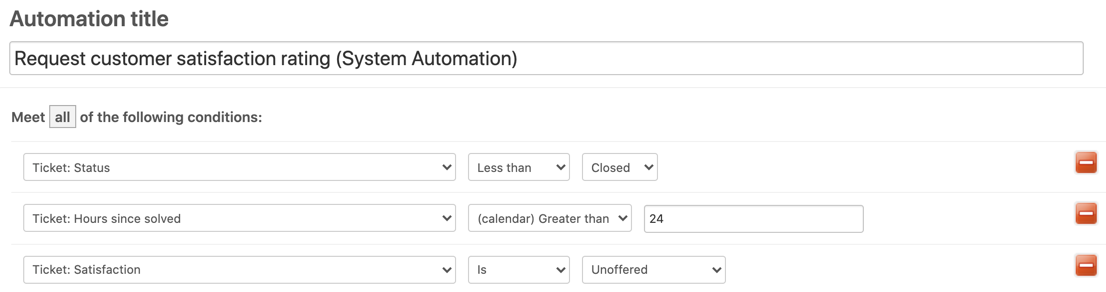
- Unoffered means that the survey has not previously been sent
- Offered means that the survey has already been sent
- Bad is the requester's negative rating
- Bad with comment is the requester's negative rating with their comment
- Good is the requester's positive rating
- Good with comment is the requester's positive rating with their comment
The unoffered value is used here because we only want to send the survey for tickets that have not already been rated.
The automation actions send the survey request email to the requester.

The {{satisfaction.rating_section}} placeholder contains the rating question and answer links. You can modify the surrounding message as needed. And as always, a canceling action is used to complete the automation; ticket satisfaction is set to offered to requester.
This automation can be modified to exclude tickets using many different criteria. For example, you might not want surveys sent for tickets assigned to a certain group or from a certain organization or for tickets containing certain tags.
Understanding the CSAT trigger for web and mobile messaging
The CSAT collection trigger for web and mobile messaging channels is created when:
- Messaging is enabled
- CSAT is enabled
This trigger, Request customer satisfaction rating (messaging), fires immediately after the related ticket has been marked as Solved, and presents the survey request to the end user in the messaging interface.
The survey sent by this trigger includes a rating component with Good and Bad options, as well as a comment component that is only displayed if the end user selects a rating option. These components can be ignored by the end user, if they do not wish to participate in the survey.
Below is an example of the web and mobile messaging trigger:

Understanding the CSAT trigger for social messaging
The CSAT collection trigger for social messaging is created when:
-
Social messaging is enabled
-
CSAT is enabled
The trigger, Request customer satisfaction rating (social messaging), fires immediately after the related ticket has been marked as Solved, and presents the survey request to the end user in the messaging interface.
For social messaging, When the criteria above is met, CSAT is enabled for the following social channels:
- Facebook Messenger
- LINE
- Twitter Direct Message
The survey sent by this trigger includes a rating component with Good and Bad options, which can be ignored by the end user if they do not wish to participate in the survey.
Below is an example of the CSAT trigger for social messaging:

Using customer satisfaction rating placeholders in Support emails
Placeholders are best used in triggers and automations. Inserting them into a macro or comment creates a plain text version of the CSAT request, which permits other users to submit a satisfaction score for the requester and requires end users to click the URL and sign in to your help center to complete the survey. Additionally, if you insert the {{satisfaction.positive_rating_url}} or {{satisfaction.negative_rating_url}} into a comment, it can take up to 45 minutes for the rating to be updated in the ticket.
Aside from the placeholder mentioned above, {{satisfaction.rating_section}}, the customer satisfaction rating feature adds four other related placeholders. All of these placeholders can be used in various ways and are described in the following table.
| Placeholder | Description |
|---|---|
| {{satisfaction.rating_section}} | A formatted block of text prompting the user to rate satisfaction.
|
| {{satisfaction.current_rating}} | The text value of the current satisfaction rating, either Good or Bad. |
| {{satisfaction.positive_rating_url}} | A URL to rate the support positively. |
| {{satisfaction.negative_rating_url}} | A URL to rate the support negatively. |
| {{satisfaction.rating_url}} | A URL to rate the support (positive or negative are not pre-selected). |
| {{satisfaction.current_comment}} | The comment that the user added when rating the ticket. |

Reporting on customer satisfaction
You can view your CSAT ratings and overall score for Support on the Satisfaction tab of the Explore MorgWard Support dashboard (see Overview of the MorgWard Support dashboard). If you are using Explore Professional, you can also build your own custom reports based on customer satisfaction data.
CSAT data for messaging is available in Explore as well. Admins can choose to build dashboards using CSAT data for messaging. Note that when an end user responds to a CSAT survey for a reopened ticket, and offers a different rating than they originally gave, the Satisfaction score appears as Offered in the reported data.
Currently, there is one known issue with messaging CSAT reporting:
- If an end user modifies a comment in a CSAT survey for a reopened ticket, the metrics may be reported incorrectly.
If you haven't enabled Explore, view your score and ratings in the Satisfaction dashboard (see Viewing your Customer Satisfaction score and ratings).
Comments
0 comments
Please sign in to leave a comment.