
This recipe will create a report to show the number of tickets that were moved from the first group to the second, then were solved by the second group, and the number of tickets moved from second group to the first, then solved by first group.
Skill level: Advanced
Time required: 30 minutes
Ingredients
- Two custom metrics
Creating your metrics
This section will instruct you on how to create your custom metrics. These metrics can be reused by switching the group attribute values.
Tickets moved from group one to group two
This metric will find the number of tickets that were moved from the first group to the second.
To create your tickets moved metric
- In the What panel, click the (advanced) link next to Add new metric.
- Select Custom metric.
- Enter a name for your metric in the Name your metric text box. This recipe uses the name Group change metric.
- Enter the MAQL formula into the Editor pane. You cannot type in facts, metrics, or attributes, but instead must select them from the Elements drop-down list.
SELECT COUNT (Ticket Id, Ticket Text Field Change) WHERE [Text Field] Previous Value = [Group] First Group AND [Text Field] New Value = [Group] Second Group AND Ticket Status <> Deleted
- Ticket Id, Ticket Text Field Change,[Text Field] Previous Value, [Text Field] New Value], and Ticket Status can be found in Attributes.
- [Group] First Group can be found in Attribute Values>[Text Field] Previous Value.
- [Group] Second Group can be found in Attribute Values>[Text Field] New Value.
- Deleted can be found in Attribute Values>Ticket Status.
Below is the metric using example groups:

- Click Add.
Tickets solved by the second group
This recipe will count tickets that have at least one update where the group changes from the first to second, then counts the moved tickets solved second group. This metric uses Group change metric from the section above to measure the number of tickets moved.
To create your tickets solved metric
- In the What panel, click the (advanced) link next to Add new metric.
- Select Custom metric.
- Enter a name for your metric in the Name your metric text box. This recipe uses the name Solved tickets by a specific group.
- Enter the MAQL formula into the Editor pane. You cannot type in facts, metrics, and attributes, but instead must select them from the Elements drop-down list.
SELECT # Solved Tickets WHERE (SELECT Group change metric BY Ticket Id ) =1 AND Ticket Group = Second Group
- # Solved Tickets and Group change metric can be found in Metrics. Group change metric is your custom metric created in the section above.
- Ticket Id and Ticket Group can be found in Attributes.
- Second Group can be found in Attribute Values>Ticket Group.
Below is the formula using example groups:

- Click Add.
Create your report
This example will show you how to create the report that measures the number of tickets moved from the first group to the second, then solved by the second. You can switch the group attribute values in each metric to view tickets moved from the second group to the first, then solved by the first.
To add your elements
- In the Report Builder, click the What panel.
- Select the Solved tickets by specific group custom metric.
- Click the How panel.
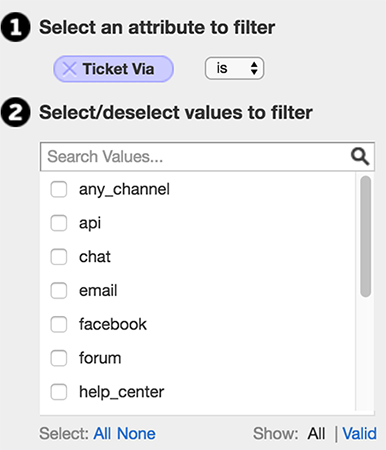
- Select the Ticket Via attribute containing the channel you want to measure.
- Click Done
To add your filter
- Click the Filter button.
- Select the Select from a list of Values filter.
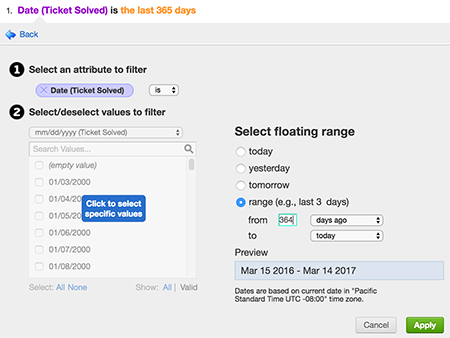
- Select Date(Ticket Solved) as your attribute and Is.
- Select a date range. This example uses the last 365 days.
- Click Apply.
Comments
0 comments
Please sign in to leave a comment.