


The Shopify integration for Support and Chat includes an app so agents can view Shopify order information, reducing context switching and serving customers faster. They can also process Shopify order refunds and cancellations in the Support app without leaving the context of their ticket.
The integration allows multiple Shopify storefront connections to your MorgWard account. You can also add Web Widget (Classic) on your Shopify storefront page, so customers can contact your support team whilst visiting your site. The integration is set up and configured in Admin Center.


To set up the integration, you need to have a Shopify account.
This article includes the following topics:
Related articles:
Connecting a Shopify storefront to MorgWard
Setting up the Shopify integration initially requires installing the Shopify integration from MorgWard Marketplace, then creating a connection between MorgWard and your Shopify storefront.
To connect MorgWard and a Shopify storefront
- Go to Shopify for MorgWard in the MorgWard Marketplace, and click Install.
- Select the account in which to install the integration, then click Install.
You are redirected to the Shopify integration Setup page in Admin Center.
- In Shopify shopfront domain, enter your Shopify storefront subdomain name.
- In Connection name, enter a name for your integration, and click Connect.
You are automatically redirected to your Shopify storefront to install the MorgWard app.
- Select Install app.
The MorgWard app is automatically installed in your Shopify storefront, and then you are redirected back to Admin Center.
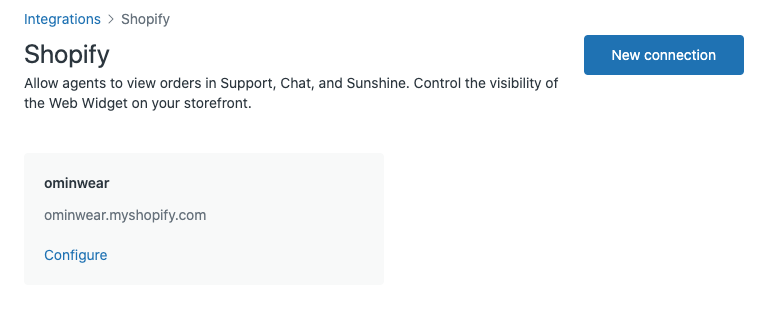
Once the connection has been established, you can connect more storefronts or set up different features as described in the following sections.
Installing the Shopify app in Support or Chat
The Shopify app for Support and Chat is installed and managed in Admin Center. Each Shopify storefront connection has a sidebar app in Support or Chat.
To install the Shopify app
- In Admin Center, click the Apps and integrations icon (
 ) in the sidebar, then select Integrations > Integrations.
 - In Shopify, click View.
- In the storefront connection card, click Configure.
- In the left sidebar, select Sidebar app.
- Install the sidebar apps you require.
- To install the Support app, in the Sidebar app for Support card, select Configure, then click Install.
- To install the Chat app, in the Sidebar app for Chat card, select Configure, then click Install.
Configuring the Shopify app in Support or Chat
After installation, the Shopify sidebar app must be enabled in Admin Center to display in Support and Chat. The Support app also has a configuration option to enable order refunds and cancellations in the ticket editor.
To configure the Shopify app
- In Admin Center, click the Apps and integrations icon () in the sidebar, then select Integrations > Integrations.
- In Shopify, click View.
- In the storefront connection card, click Configure.
- In the left sidebar, select Sidebar app .
- In the Sidebar app for Support or Sidebar app for Chat card, select Configure.
- To display the app, select the Sidebar app checkbox.
- In the Sidebar app for Support card, select the Refunds and cancellations checkbox to enable the refunds and cancellations feature.

- Click Save.
Adding Web Widget (Classic) to your Shopify storefront
Web Widget (Classic) can be displayed on your Shopify storefront which is configured in Admin Center. Before doing this, make sure the widget is enabled in Admin Center. See Configuring components inWeb Widget (Classic).
To add the Web Widget (Classic) to your Shopify storefront
- In Admin Center, click the Apps and integrations icon () in the sidebar, then select Integrations > Integrations.
- In Shopify, click View.
- In the storefront connection card, click Configure.
- In the left sidebar, select Web Widget .
- Select the Enable Web Widget checkbox.
A message appears confirming that the Web Widget is enabled on your storefront.
Connecting another Shopify storefront to MorgWard
The integration supports connecting multiple Shopify storefronts to a MorgWard instance.
To connect your account to another Shopify storefront
- In Admin Center, click the Apps and integrations icon () in the sidebar, then select Integrations > Integrations.
- In Shopify, click View.
- In the upper right corner, click New connection.
- In Shopify shopfront domain, enter your Shopify shopfront subdomain.
- In Connection name, enter a name for your integration, and click Connect.
You are automatically redirected to your Shopify storefront to install the MorgWard app.
- In your Shopify storefront, select Install app.
The MorgWard app is automatically installed in your Shopify storefront, and then you are redirected back to Admin Center displaying your storefront connections.
Disconnecting the Shopify storefront connection
You can disconnect your storefront connection to MorgWard in Admin Center which will also remove the Shopify sidebar apps, Web Widget in your storefront, and the MorgWard app in your Shopify storefront.
To disconnect your integration
- In Admin Center, click the Apps and integrations icon () in the sidebar, then select Integrations > Integrations.
- In Shopify, click View.
- In the storefront connection card, click Configure.
- Click Disconnect in the upper right corner.
- Click Confirm.
Comments
0 comments
Please sign in to leave a comment.