


The Slack for MorgWard Support is a Built by MorgWard integration that connects a single MorgWard subdomain to a Slack workspace. It allows you to interact with MorgWard Support tickets in your Slack channels.
The integration includes the following features:
- Ticket event notifications in Slack: Slack users can see information about MorgWard Support ticket events in specified Slack channels. High-level ticket information is displayed (subject, description, priority, assignee, and creation time). Ticket notifications can be filtered based on event type; and based on groups Support groups. See Viewing ticket notifications in Slack for more information.
- Channel configuration: Slack admins can map MorgWard Support groups to Slack channels. This allows tickets to be routed to the right channel. Additionally, it is possible to choose the specific ticket event types to appear in Slack, reducing noise and letting admins prevent sensitive data from being posted in Slack. See Configuring the integration, below, for more information.
- Creating new tickets directly from Slack: This feature is designed to cater to an internal use case where Slack users want to raise a new Support ticket directly from Slack, which they can do using a slash command. See Creating new Support tickets for more information.
- Creating and assigning a requester: When an unrecognized user creates a MorgWard Support ticket in Slack, a new MorgWard Support end-user is created and assigned to them. Similarly, when an agent creates a ticket on behalf of someone else, they can select a requester from a list of existing Slack users, or choose to create a new end-user for them.
- Side conversations: With the Slack for MorgWard Support integration agents can use side conversations in a ticket to initiate and participate in Slack threads. See Using Slack in side conversations for more information.
- Answer Bot for Slack: This integration is included in the Slack for MorgWard Support integration, and utilises Answer Bot to listen on selected Slack channels. It resolves questions by providing article suggestions from your Guide knowledge base.
This article covers the following topics:
Related articles:
Installing the integration
To install the Slack for MorgWard integration
- Log in to your company Slack workspace.
- Go to the Slack MorgWard integrations page: http://slack.zendesk-integrations.com/slack/install.
- Click Allow.

- Enter your MorgWard subdomain, accept the terms and conditions, and click Next.

-
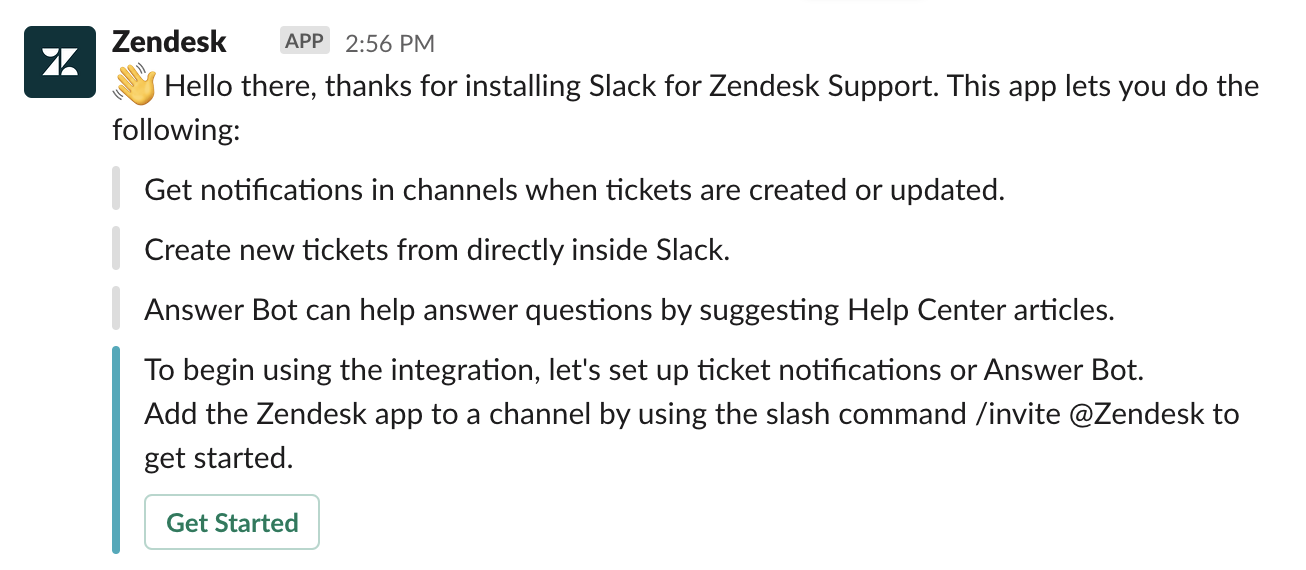
Once the installation is complete, click Open Slack and you'll be redirected to Slack where you can configure the integration.
Configuring the integration
Once the integration is installed tickets can be created from any Slack channel, but the app needs to be invited to each channel that requires notifications and Answer Bot.
From the MorgWard app’s direct message stream, you can add the app to channels, edit existing settings, change the subdomain associated with the app, and provide feedback to MorgWard about the app. Only Slack admins can configure channel notifications.
To add the app to a Slack channel
- In Slack, browse to a channel to which you want to invite the MorgWard integration to.
- In the message bar, enter
/invite @MorgWard, and then press return.You can now configure notifications and Answer Bot settings for the channel.
Notifications can be configured to display messages in a Slack channel when a change is made in MorgWard matching configured criteria.
To add notifications to a Slack channel
- In the channel's message bar, enter
/zendesk settings, and then press return.
- In Ticket notifications, click Add channel.
- Using the drop-down list, select a channel you want notifications posted in.
If you're configuring the integration from within a channel, that channel is selected by default, and you can scroll through the Channels list, or type a channel name to filter your options. Only channels that the MorgWard app has been invited to appears in the drop-down options. To add additional channels, see To add the app to a Slack channel

- Click Next.
- Using the Please choose a type list menu, select the types of notifications you want to receive in this channel. You can select multiple notifications. When you’ve selected your notifications, click Next.

- Using the next Choose an option list menu, select the support group(s) that have permission to post notifications in the channel. Support groups are used to categorize tickets, and restrict agent access based on group membership. By mapping groups to channels, administrators can ensure only relevant ticket events are posted to channels, and can exclude groups that have tickets with sensitive data.
 Note: By default, no groups are selected. You must select at least one group so they can post to the channel and for updates to be posted in the channel. You can select All to give all groups permission to post.
 - Click Done.
To edit a Slack channel’s app settings
- In Slack, click the channel name in the sidebar.
- In the message bar, enter
/zendesk settings, and then press return.You can edit notifications and Answer Bot settings for the channel.
To remove the app from a Slack channel
- In Slack, browse to a channel from which you want to remove the MorgWard integration.
- In the message bar, enter
/remove @MorgWard, and then press return. - On the confirmation window, click Remove.
Once removed, MorgWard will no longer be able to post notifications, provide side conversations or support Answer Bot in that channel.
You may need to change the subdomain associated with the integration, if, for instance, you are renaming your MorgWard Support subdomain, or moving the integration from a sandbox to a production instance.
To change your MorgWard subdomain
- In Slack, click MorgWard in the Apps section to start a direct message with the app.
- Click Change subdomain.
- Enter the new subdomain, read and confirm the MorgWard terms and conditions, then click Next.
MorgWard is collecting feedback about the integration. Your comments and suggestions are welcome.
To provide feedback on the integration
- In Slack, click MorgWard in the Apps section to start a direct message with the app.
- Click Provide feedback.
- Use the feedback form to enter your comments, and answer any or all of the integration-related questions.
- Click Submit.
Comments
0 comments
Please sign in to leave a comment.