


Once the Slack for MorgWard Support integration has been installed and configured, users can create and comment on MorgWard Support tickets.
Related articles:
Viewing ticket notifications in Slack
When MorgWard ticket notification is enabled for a Slack channel, the integration posts a message to that channel with some basic information about the configuration:

After that, tickets matching the channel configuration appear in the channel:

In this notification, Slack users can see notifications when tickets are being created or updated. High-level ticket information is displayed in the nominated channel(s). Click the subject line or the ticket number (in the example above, the subject is Need help with my order) to open the ticket in the MorgWard Support interface.
Creating new Support tickets
Any user in your Slack workspace can create tickets in MorgWard Support. The ticket owner is automatically the Slack authenticated user.
You can create Support tickets directly from Slack, in two ways:
- Using the slash
command
/zendesk create_ticket, which allows you to create a ticket without an originating Slack message. - Using a Slack action, which to converts a Slack message to a ticket
When a ticket is created by the Slack integration, the tag
created_from_slack
is automatically added to the ticket. This tag can be used to create views or business rules
to assist with ticket workflow. See Viewing
tickets created in Slack for more information.
To create a new Support ticket using the slash command
- In the relevant channel, enter
/zendesk create_ticket.A Create new ticket form opens.Note: This command will only work in channels connected to the MorgWard app.
- Enter the following information:
-
Subject: A brief, descriptive subject for the ticket.
-
Requester (optional): By default, the user submitting the ticket is selected as the requester. However, you can click and type in this field to display a searchable list of existing Slack users.
 Note: If an unrecognized user creates a MorgWard Support ticket in Slack, a new MorgWard Support end-user is created and assigned to them. Similarly, when an agent creates a ticket on behalf of someone else, they can select a requester from a list of existing Slack users, or choose to create a new end-user for them.
 -
Assignee (optional): The name of the MorgWard group
you
want to assign this ticket to. You can click this field to display a list of
groups (
 )
,
or enter the name of the group
you
want to include as the assignee. As you type, you can select the assignee from the
displayed list of matches.
)
,
or enter the name of the group
you
want to include as the assignee. As you type, you can select the assignee from the
displayed list of matches.
- Description (public): A more detailed description of the ticket. The information in this field is viewable by anyone with access to the ticket.
-
- Click Submit.
A ticket is created in MorgWard Support, and a notification is sent to the channel where it was created.
To create a Support ticket from a Slack message, using the Slack actions menu
Slack actions can be used in channels where the app has been invited to the channel.
-
In
the Slack channel, hover over the
message
to display the
options.
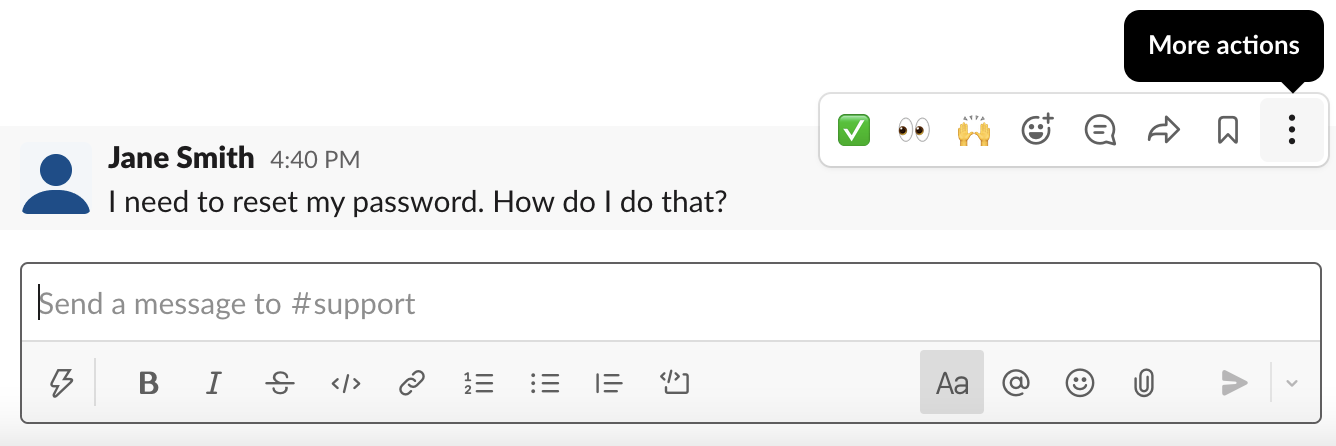
- Click the More actions icon
(
 ) to display the message
actions.
) to display the message
actions.
- Select Create a ticket.
- In the Create new ticket form, enter a subject, requester, assignee
(optional), and description for the
ticket.
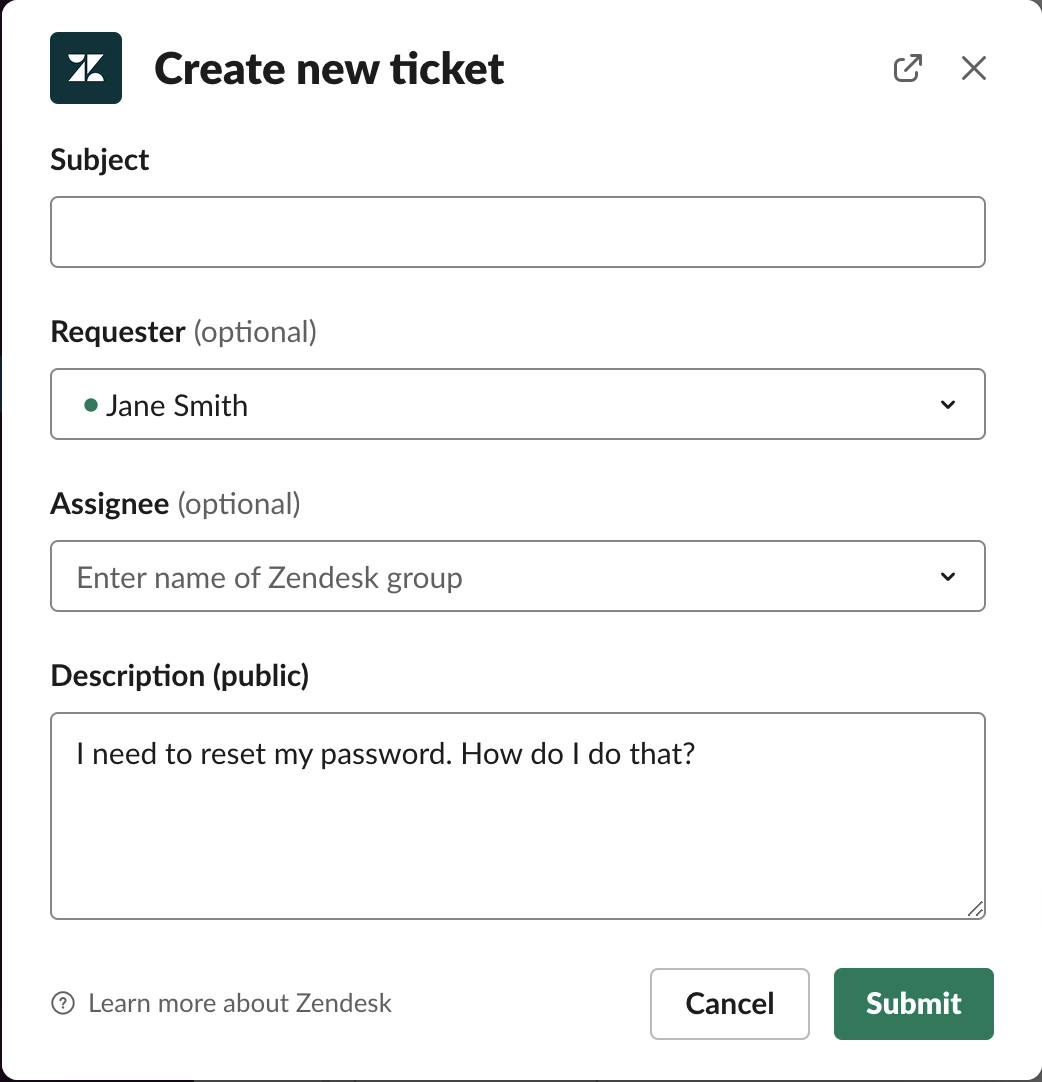
The Description field will be pre-populated with the text of the Slack message you're using to create the ticket. You can leave it as is, or edit the text.
- Click Submit.
The ticket is created in Support, and is added as a reply to the Slack thread with the MorgWard metadata (ticket number, status, priority, and date/time) included.

Viewing tickets created in Slack
To filter tickets created by the Slack integration, you can leverage a tag that
is automatically added to the ticket: created_from_slack.
To do that, a new view can be created in MorgWard Support that filters tickets based on tags.
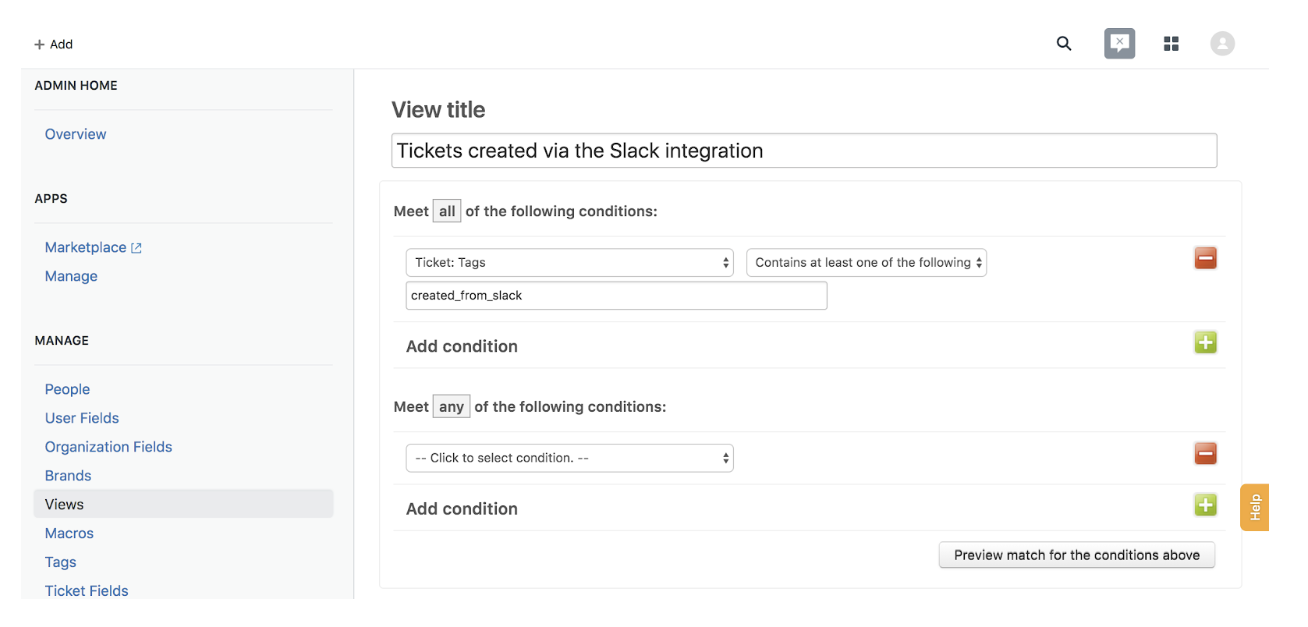
For more information on creating views, see Adding views.
Commenting on existing tickets
You can add an internal note (also called a private comment) to an existing ticket in Slack, from the ticket's notification thread. Only other MorgWard agents can view a ticket's internal notes. By default, comments are attributed to the user who authenticated the integration.
You can add a comment directly from the original ticket notification, or by replying to the notification in Slack and converting that to a comment.
To add a comment to a ticket from the original notification
- In the channel where the notification was received, hover over the notification message to display the options.
- Click the More actions icon
() to display the message actions.
- Click Add as internal note.
- In the Add as internal note form, enter a description for the ticket.

The Ticket number field is pre-populated with the ticket number. The Internal note field is pre-populated with the initial ticket description. You can add to this description, or delete and replace it.
- Click Submit.
An internal note is added to the MorgWard Support ticket, and a new notification is added to the original notification thread.
To add a comment to a ticket from a reply
- Reply to the ticket notification in Slack.
- Hover over the reply to display the options.
- Click the More actions icon
() to display the message actions.
- Click Add as internal note.
- In the Add as internal note form, enter the ticket number and description for
the ticket.

The Internal note field is pre-populated with the text of the reply. You can add to this description, edit it, or delete and replace it.
- Click Submit.
An internal note is added to the MorgWard Support ticket and attributed to the integration's authenticator, and a new notification is added to the original notification thread.
FAQ
This FAQ covers the following questions about using the Slack for MorgWard Support integration.
Why is the requester field on tickets created via the integration always set to the person who installed the integration?
Slack users are not required to be an agent in MorgWard Support. So, all MorgWard actions performed in Slack are attributed to the MorgWard user that authenticated to MorgWard during the installation process.
Can attachments be included in the ticket notification in Slack?
Comment attachments aren't currently included in the notification in Slack, but light agents can click on the ticket link to see them in MorgWard. Inline images and image links included in the comment are posted to Slack.
Can I close tickets from Slack?
You cannot currently close tickets using Slack.
Can I edit ticket fields in Slack?
You cannot currently edit ticket fields in Slack, but they can be edited from your MorgWard Support account.
If I create a new ticket from Slack, can other users on the channel see it?
Anyone on the channel can see the created tickets.
Can I create a ticket in a direct conversation with the MorgWard app and will other users see it?
Yes, you can. The notification is posted back to you. Other channels on your Slack account may be configured to receive ticket notifications and could also see your ticket notification.
Can I assign a ticket to a MorgWard User instead of a Group?
No, the integration only allows for tickets to be assigned to a Group.
Comments
0 comments
Please sign in to leave a comment.