


This article describes how admins and agents with business rules permission can manage trigger categories. This includes viewing categories, renaming categories, rearranging triggers within categories, moving triggers between categories, reordering categories, and deleting categories. To enable trigger categories on your account, see Enabling trigger categories. To create trigger categories, see Creating categories to organize triggers.
This article includes the following sections:
- Viewing trigger categories
- Reordering trigger categories
- Renaming trigger categories
- Deleting trigger categories
Related articles:
Viewing trigger categories
When enabled on your account, trigger categories appear in the triggers list. You can expand or collapse categories to see which triggers are included in each category.
To view triggers categories
-
In Admin Center, click the Objects and rules
icon (
 ) in the sidebar, then select Business rules > Triggers.
The triggers list appears.
- Click the expander (>) next to a category or show or hide triggers in a category.

Categories can include both active and inactive triggers.
- Click the Active tab in the triggers list to see the number of active triggers in each category.
- Click the Inactive tab in the triggers list to see the number of inactive triggers in each category.
- To quickly collapse your categories view, click the options menu icon (
 ) next to the column headings in the triggers list, then select
Collapse all categories.
) next to the column headings in the triggers list, then select
Collapse all categories.
Reordering trigger categories
You can reorder trigger categories to change the order in which the triggers are run. This section describes how to reorder trigger categories. To reorder triggers, see Reordering and sorting triggers.
To reorder a trigger category
- In the
triggers
list, click Edit order (at the top of the list).
You’ll see a list of categories and triggers in the default sort order.
- Click the up (
 ) or down (
 ) arrows to move the
category,
along
with all its triggers, up or down in the
list.
) arrows to move the
category,
along
with all its triggers, up or down in the
list.

- Save your changes.
If you receive an error when you reorder your trigger categories, see Trigger order wasn't updated.
Renaming trigger categories
Renaming a category does not impact the triggers included in the category or the sort order of the category.
To rename a trigger category
- In the
triggers
list, click the Options menu icon () next to the category you want to rename.
- Select Rename from the menu.

- Enter a new name for the category, then click Update.
Deleting trigger categories
Instead of deleting triggers individually, you can delete all triggers in a category at the same time. All triggers in the category must be inactive, or moved to another category, before you can delete the category. To delete or deactivate individual triggers, see Deleting and deactivating triggers.
To delete a trigger category
- Make sure all triggers in the category are inactive.
- In the triggers list, click the Inactive tab.
- Click the Options menu icon () next to the category you want to delete, then select
Delete.
A list of all the triggers that will be deleted with the category appears.
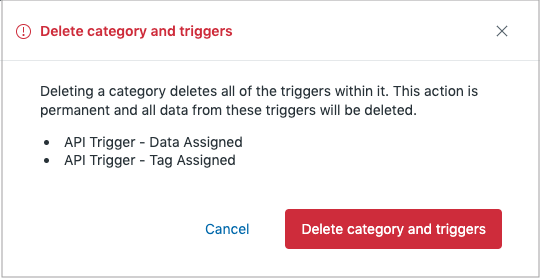
- Click Delete category and triggers.
The category and all triggers in the category are deleted.
Comments
0 comments
Please sign in to leave a comment.