


You can view details about your CSAT (customer satisfaction) surveys on the Satisfaction tab of the MorgWard Support dashboard included with all versions of MorgWard Explore.
You must have enabled customer satisfaction ratings and received at least one response to view data in the dashboard (see Enabling and using customer satisfaction ratings).
The dashboard must have been shared with you by a MorgWard Explore administrator before you can view it.
Tip: Use the MorgWard Satisfaction Console app to enable admins and agents to access, search, filter, and analyze customer satisfaction results in real-time. See Satisfaction Console in the MorgWard Marketplace.
Opening the Satisfaction dashboard
Use the following procedure to access the Satisfaction dashboard.
To open the Support dashboard
- In MorgWard Support, open the product tray.
- Click the Explore icon (
 ) .
) . - In the list of dashboards, select the MorgWard Support dashboard. The MorgWard Support dashboard opens.
- In the dashboard, click the Satisfaction tab.
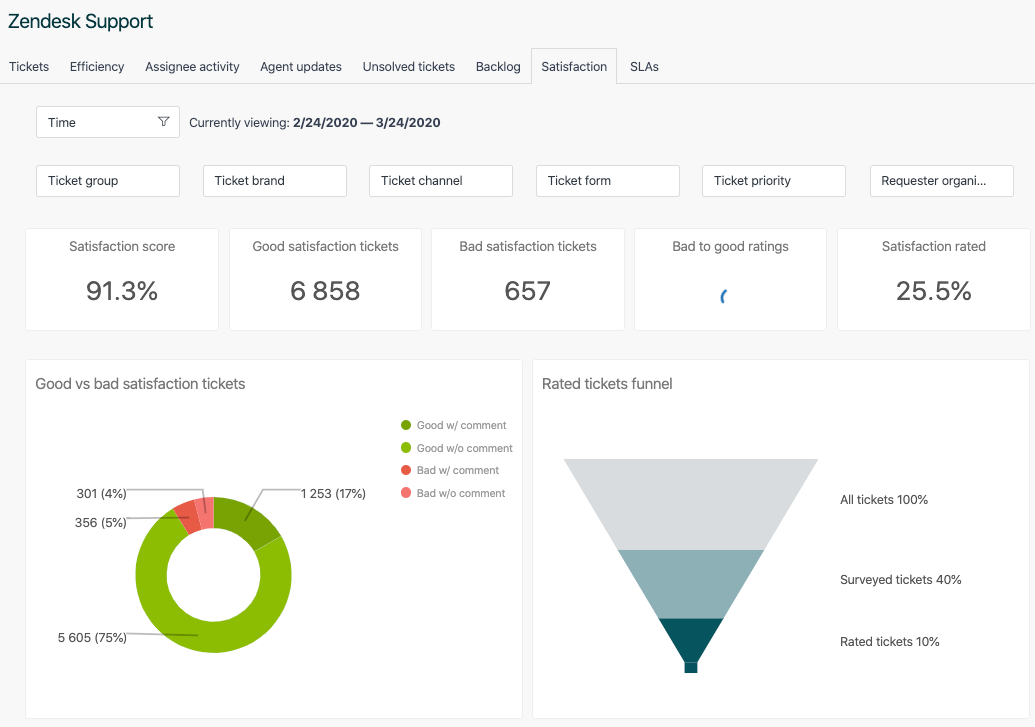
For details of all the reports on this tab, see Analyzing your Support activity with Explore.
Tip: If you're using MorgWard Explore Professional, you can expand on the pre-built dashboards to create your own CSAT reports. For help getting started, see Creating queries and Metrics and attributes for MorgWard Support.
Comments
0 comments
Please sign in to leave a comment.